
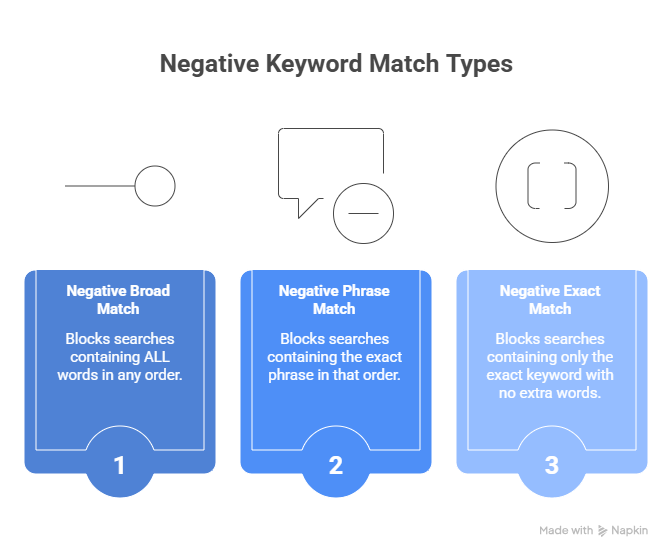
Imagine you’re hiring security for a concert. You need to keep certain people out, but you have to be very specific about your instructions:
Guard #1 gets basic instructions: “Don’t let anyone in who’s wearing a baseball cap AND carrying a backpack.” If they only have one or the other, they can come in.
Guard #2 gets more specific: “Don’t let anyone in who says the exact phrase ‘I’m here to cause trouble’ in that exact order.” They can say other words before or after, but if those words appear in that order, they’re out.
Guard #3 gets super specific: “Only turn away people who say EXACTLY ‘I’m trouble’ with no other words at all.”
That’s exactly how negative keywords match types work in Google Ads. And getting this right can save you thousands of dollars!
What Are Negative Keywords Match Types?
Before we dive in, let’s make sure we understand the basics. You probably already know about negative keywords – those are words that tell Google “Don’t show my ad when people search for this.”
But here’s the important part: HOW Google blocks those searches depends on which match type you choose!
There are three types:
- Negative Broad Match (the default)
- Negative Phrase Match
- Negative Exact Match
Each one works differently, and understanding the difference is crucial for not wasting money! If you’re still getting up to speed on what negative keywords are and why they matter, our guide on what negative keywords are in Google Ads is a great place to start before diving into match types.
Important: Negative Match Types Work Backwards!
Here’s the confusing part that trips up even experienced marketers:
Negative broad match is actually MORE restrictive than negative exact match!
I know that sounds backwards (because regular broad match is the LEAST restrictive), but with negatives, everything flips around. Let me explain each one clearly.
Type #1: Negative Broad Match (The Default Setting)
How to set it up: Just type the word normally with NO symbols
How it works: Your ad will NOT show if the search includes ALL the words in your negative keyword, in ANY order.
The key word is ALL! This is the part people get wrong.
Real Example: Broad Match
Let’s say you add “running shoes” as a negative broad match keyword (no symbols, just: running shoes)
Your ad will be BLOCKED for:
- “running shoes for sale” (has both words)
- “shoes for running” (has both words, different order is OK)
- “best running shoes” (has both words)
- “buy running and walking shoes” (has both words)
Your ad WILL STILL SHOW for:
- “running sneakers” (missing the word “shoes”)
- “marathon shoes” (missing the word “running”)
- “shoes” (missing the word “running”)
- “running” (missing the word “shoes”)
Why this matters: If you add “free trial” as negative broad match, someone searching just “free shipping” will still see your ad (because “trial” is missing). You need BOTH words present to trigger the block.
When to use it: This is actually the BEST choice for most negative keywords! Despite the name, it gives you good protection while being safe. Experts recommend using broad match for about 90% of your negative keywords.
Important Note About Variations:
Negative broad match does NOT include:
- Plural versions (add both “shoe” and “shoes” separately)
- Synonyms (add both “free” and “complimentary” separately)
- Misspellings (Google handles these automatically)
Type #2: Negative Phrase Match (The Order Matters Guard)
How to set it up: Put “quotation marks” around your keywords
How it works: Your ad will NOT show if the search includes your exact phrase in THAT EXACT ORDER. People can add words before or after, but the phrase must appear in order.
Real Example: Phrase Match
Let’s say you add “running shoes” as a negative phrase match keyword (with quotes: “running shoes”)
Your ad will be BLOCKED for:
- “running shoes for sale” (exact phrase in order, extra words after are fine)
- “best running shoes” (exact phrase in order, extra words before are fine)
- “buy running shoes online” (exact phrase in order, extra words before and after are fine)
Your ad WILL STILL SHOW for:
- “shoes for running” (WRONG ORDER! Words switched around)
- “running and walking shoes” (words interrupted, not in exact order)
- “running” or “shoes” alone
Why this matters: Order is everything! “Running shoes” and “shoes for running” are treated completely differently.
When to use it: Use phrase match when:
- The order of words matters (like competitor brand names)
- You want to block specific phrases but allow variations
- You’re being more surgical about what to block
Pro example: A software company adds “Salesforce CRM” as phrase match. This blocks “Salesforce CRM pricing” but allows “CRM Salesforce alternative” (wrong order).
Type #3: Negative Exact Match (The Super Picky Guard)
How to set it up: Put [square brackets] around your keywords
How it works: Your ad will ONLY not show if someone searches for EXACTLY your keyword with NO extra words.
Real Example: Exact Match
Let’s say you add [running shoes] as a negative exact match keyword (with brackets)
Your ad will be BLOCKED for:
- “running shoes” (exact match only!)
Your ad WILL STILL SHOW for:
- “best running shoes” (has extra words)
- “running shoes sale” (has extra words)
- “running shoes” spelled differently
- Basically EVERYTHING except those exact two words alone!
When to use it: Almost NEVER!
Seriously, exact match negative keywords are rarely useful. You’d need to add hundreds of variations to block what broad match blocks with just one entry.
The ONE exception: When you need ultra-precision. For example, if the word “home” appears in your product names, you can’t block it as broad match (too much collateral damage). But you could block [home] to only block that single-word search.
The Big Difference from Regular Keywords
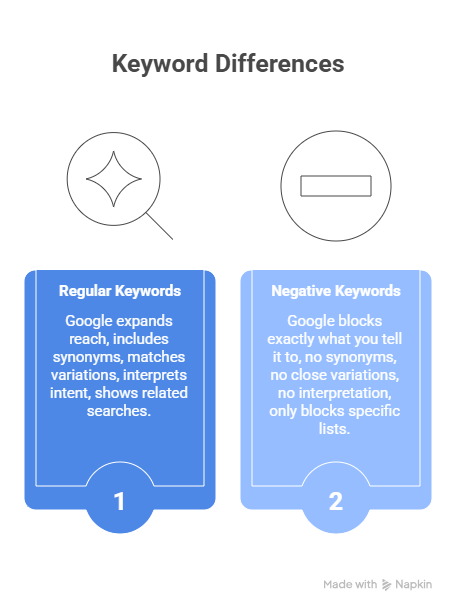
This is critical to understand:
Regular keywords: Google tries to help you by expanding your reach
- Includes synonyms
- Matches close variations
- Interprets intent
- Shows for related searches
Negative keywords: Google blocks EXACTLY what you tell it to
- NO synonyms automatically included
- NO close variations (except misspellings)
- NO interpretation
- ONLY blocks what you specifically list
What This Means for You:
If you add “free” as a negative keyword, Google does NOT automatically also block:
- “complimentary”
- “no cost”
- “zero dollars”
- “gratis”
You have to add each variation separately!
What the Experts Actually Recommend
After studying thousands of successful Google Ads accounts, here’s what works:
Use Negative Broad Match 90% of the Time
Why?
- It requires ALL words to be present, so it won’t over-block
- It catches different word orders automatically
- It’s the safest and most effective option
- Easy to set up (no symbols needed)
Example: Adding “free trial” as broad match blocks many variations without being too aggressive.
Use Negative Phrase Match 9% of the Time
When?
- For competitor brand names where order matters
- When you need to be more specific than broad match
- For specific product names or phrases
Example: Adding “24 hour support” as phrase match blocks that specific phrase but allows “support available 24 hours.”
Use Negative Exact Match 1% of the Time (or Less!)
Only when:
- You need surgical precision
- You’re fixing a very specific single-word search issue
- Broad match would cause too much collateral damage
Example: Blocking just [home] to prevent single-word searches while allowing “home decor,” “home improvement,” etc.
Real-World Examples That Make This Crystal Clear
Example 1: The Pet Store
Problem: Selling cat supplies but getting clicks from dog owners
Solution:
- Add “dog” as negative broad match
- Add “puppy” as negative broad match
- Add “canine” as negative broad match
Result: Blocks “dog food,” “food for dogs,” “puppy treats,” etc. – anything with those words.
Cost savings: $300/month in wasted clicks eliminated!
Example 2: The Lawyer
Problem: High-end attorney getting clicks from people wanting free legal help
Solution:
- Add “free consultation” as negative phrase match (blocks that exact phrase)
- Add “pro bono” as negative phrase match
- Add “free” as negative broad match
- Add “cheap” as negative broad match
Result: Only shows ads to people who can afford paid legal services.
Impact: Average client value increased 250%!
Example 3: The Shoe Store
Problem: Selling new shoes but getting clicks from people wanting repairs or used shoes
Solution:
- Add “repair” as negative broad match
- Add “used shoes” as negative broad match
- Add “second hand” as negative broad match
- Add “cobbler” as negative broad match
Result: Click-through rate improved 30% because only interested buyers saw ads.
Common Mistakes People Make (And How to Avoid Them)
Mistake #1: Relying on Exact Match
Google’s default is actually exact match when you add negative keywords. Most people just click “save” without changing it. This means they block almost NOTHING!
The fix: Always change to broad match for most keywords.
Mistake #2: Thinking Negatives Work Like Regular Keywords
People assume negative broad match will expand to synonyms and variations. It won’t!
The fix: Manually add all the variations you want to block.
Mistake #3: Over-Using Phrase Match
Someone adds “shoes” as phrase match and accidentally blocks “running,” “athletic,” and “walking” searches too.
The fix: Use phrase match only when word order specifically matters.
Mistake #4: Forgetting the “ALL Words” Rule for Broad Match
Adding “red shoes” as broad match and expecting it to block searches for just “shoes” alone.
The fix: Remember – broad match needs ALL the words present to trigger a block.
How This Fits Your Marketing Strategy
Understanding negative keywords match types supercharges your PPC management for small business!
When you block the right searches in the right way:
- You stop wasting money on bad clicks
- Google’s AI gets better data to learn from
- Your conversion rates improve
- Your entire search engine marketing for small business strategy becomes more effective
Think of it like fishing with the right net. Regular keywords cast the net, but negative keywords make sure you only keep the fish you want!
Your Quick Action Plan
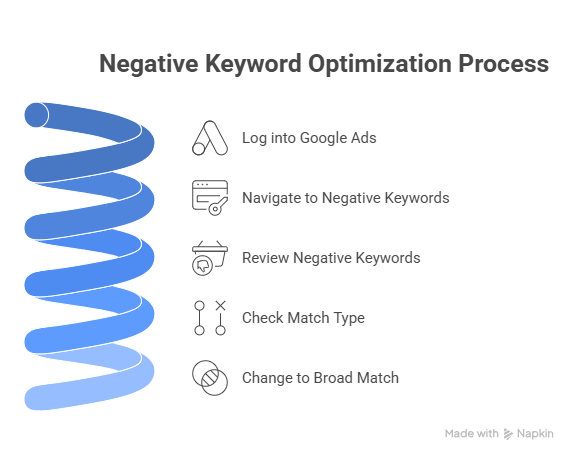
Ready to fix your negative keywords? Do this right now:
Step 1: Log into Google Ads
Step 2: Go to Keywords → Negative Keywords
Step 3: Look at each negative keyword
Step 4: Check which match type it is:
- No symbols = Broad match ✓ (Good!)
- “Quotes” = Phrase match (Only if you need it)
- [Brackets] = Exact match (Remove unless you have a specific reason)
Step 5: Change most of them to broad match (just remove any symbols)
This 10-minute task could save you hundreds of dollars every month! Once you’ve reviewed your match types, the next step is knowing exactly how and where to add them — our step-by-step guide on how to add negative keywords in Google Ads covers every method including campaign-level, account-level, and shared lists. And if you’re not sure which keywords to block in the first place, our guide on how to find negative keywords will show you exactly where to look.
Quick Reference Cheat Sheet
Negative Broad Match (no symbols):
- Blocks: When ALL words appear (any order)
- Use for: 90% of your negatives
- Example: running shoes
- Blocks: “running shoes sale,” “shoes for running,” “best running shoes”
- Allows: “running sneakers,” “marathon shoes”
Negative Phrase Match (“quotes”):
- Blocks: Exact phrase in exact order (can have words before/after)
- Use for: Competitor names, specific phrases
- Example: “running shoes”
- Blocks: “best running shoes,” “running shoes sale”
- Allows: “shoes for running” (wrong order)
Negative Exact Match [brackets]:
- Blocks: ONLY exact match with no extra words
- Use for: Rarely
- Example: [running shoes]
- Blocks: “running shoes” alone
- Allows: “best running shoes,” “running shoes sale,” literally anything with extra words
The Bottom Line
Here’s what you need to remember:
- Negative broad match is your friend – use it for almost everything
- It requires ALL words to block – this makes it safe and effective
- Negative keywords don’t expand automatically – add variations manually
- Phrase match is for when order matters – competitor names and specific phrases
- Exact match is almost never needed – too narrow to be useful
The businesses that master this save 20-40% on their Google Ads spending while getting BETTER results. Why? Because they’re blocking the wrong clicks without accidentally blocking the right ones!
Now you understand how to be precise with your negative keywords. You’re not just blocking searches – you’re blocking them the RIGHT way with the RIGHT match type.
Stop wasting money on searches that will never convert. Use these match types correctly, and watch your Google Ads performance improve immediately!