
How to Add Negative Keywords in Google Ads? – Have you ever wondered how successful businesses save money on their Google Ads? The secret is something called “negative keywords,” and today you’re going to learn exactly how to add them to your campaigns. Don’t worry—it’s much easier than you might think, and we’ll walk through every step together!
What You Need Before You Start
Before we jump into adding negative keywords, make sure you have your Google Ads account ready to go. You’ll also want to have a list of words you want to block. If you’re not sure what negative keywords are or why they matter, check out this helpful guide on negative keywords to understand the basics first.
Not sure which words to put on that list? Our guide on how to find negative keywords covers every method — from reading your search terms report to using AI tools — so you can build a solid list before you start adding anything.
Think of this process like setting up a fence around your garden. You want to keep the good stuff (your potential customers) inside while keeping the bad stuff (people who won’t buy from you) outside. That’s exactly what we’re doing with negative keywords!
Method 1: Adding Negative Keywords at the Campaign Level
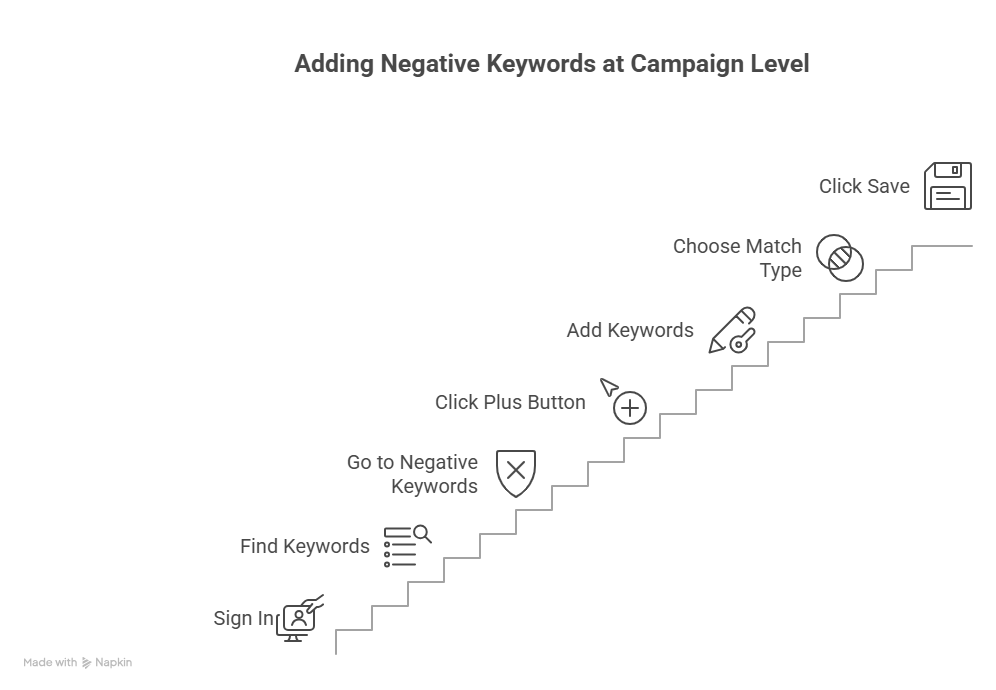
This is the most common way to add negative keywords, and it’s perfect for when you want to block certain words from an entire campaign. Here’s how to do it:
Step 1: Sign Into Your Google Ads Account
First, go to your Google Ads account and log in with your username and password. Once you’re in, you’ll see your main dashboard with all your campaigns.
Step 2: Find the Keywords Section
Look for a menu item called “Campaigns” and click on it. Then, find the dropdown menu that says “Audiences, keywords, and content.” Click on “Search keywords” in that menu. This is where all the magic happens!
Step 3: Go to Negative Keywords Tab
You’ll see several tabs at the top of the page. Click on the one that says “Negative keywords.” This is your control center for blocking unwanted searches.
Step 4: Click the Plus Button
Look for a blue plus button (+) on the screen. When you click it, Google will ask you to choose which campaign you want to add negative keywords to. Pick the campaign where you want to block certain words.
Step 5: Add Your Keywords
Now comes the fun part! You’ll see a big text box where you can type your negative keywords. Here’s an important rule: add one keyword per line. Don’t put them all on the same line, or Google won’t understand what you’re trying to do.
For example, if you sell new shoes and want to block people looking for used or free shoes, you would type:
used
free
second-hand
worn
Each word goes on its own line.
Step 6: Choose Your Match Type
Google gives you three ways to block keywords: broad match, phrase match, and exact match. Here’s what each one means:
- Broad match (no symbols needed): Blocks searches that contain ALL the words in your negative keyword
- Phrase match (use “quotation marks”): Blocks searches with your exact phrase in that order
- Exact match (use [square brackets]): Blocks only that exact search with nothing added
For most people, broad match works great because it blocks the most searches. Just type the word with no symbols, and you’re good to go! One important thing to know: the way these match types behave for negative keywords is actually the opposite of what you’d expect — broad match blocks MORE searches than exact match, not fewer. Our guide on negative keywords match types explains this counterintuitive behaviour in full detail so you always choose the right one.
Step 7: Click Save
Once you’ve added all your keywords, click the “Save” button. Congratulations! You just added negative keywords to your campaign. From now on, your ads won’t show up when people search for those words.
Method 2: Adding Negative Keywords at the Account Level
Sometimes you want to block certain words from ALL your campaigns at once. This is super useful for words like “free” or “jobs” that you never want triggering your ads. Here’s how to do it:
Step 1: Go to Account Settings
Click on the “Admin” section in your Google Ads account. Then click on “Account Settings.” This is where you control things that affect your entire account.
Step 2: Find the Negative Keywords Section
Scroll down until you see a section called “Negative Keywords.” Click on it to open up the negative keyword manager.
Step 3: Add Your Keywords
Just like before, add one keyword per line in the text box. The difference is that these keywords will automatically apply to every campaign in your account—including Performance Max campaigns! This saves you tons of time because you don’t have to add the same words over and over again.
Step 4: Save Your Changes
Click “Save” and you’re done! These negative keywords will now protect all your campaigns from unwanted clicks.
Method 3: Creating Negative Keyword Lists (The Smart Way!)
This is the method that professional advertisers use because it’s super organized and saves even more time. Instead of adding keywords one campaign at a time, you create lists that you can use over and over again. Think of it like making a playlist of songs—you create it once and can play it whenever you want!
Step 1: Navigate to the Shared Library
In your Google Ads account, click on the “Tools” icon (it looks like a wrench). Then find the section called “Shared library” and click on “Exclusion lists.”
Step 2: Click on Negative Keyword Lists
You’ll see a tab that says “Negative keyword lists.” Click on it, and then click the blue plus button to create a new list.
Step 3: Name Your List
Give your list a name that makes sense. For example:
- “Job Searchers” (for blocking employment-related words)
- “Free Seekers” (for blocking people looking for free stuff)
- “DIY Crowd” (for blocking people who want to make things themselves)
Good names help you remember what each list is for when you have lots of them.
Step 4: Add Keywords to Your List
Type in your negative keywords, one per line, just like before. The cool thing about lists is that you can add up to 5,000 keywords to each one! That’s a lot of blocking power.
Step 5: Apply the List to Your Campaigns
After you save your list, you can apply it to any campaigns you want. Just check the boxes next to the campaigns that should use this list, and click “Apply.” Now that same list works across multiple campaigns without you having to type the keywords again!
Even better, if you need to add a new word to your list later, you just add it once and it automatically updates in all the campaigns using that list. It’s like updating your playlist with a new song—everyone who follows the playlist gets the new song automatically!
Using Google Ads Editor (For Advanced Users)
If you manage a lot of campaigns or need to add many negative keywords at once, Google Ads Editor is your best friend. This is a free program you download to your computer that makes managing your ads much faster.
Here’s the quick version of how it works:
- Download and open Google Ads Editor
- Select “Keywords and Targeting” then “Keywords, Negative”
- Click “Make multiple changes”
- Paste all your negative keywords in the grid (you can copy them from a spreadsheet!)
- Click “Process” and then “Finish”
- Review and click “Keep” to save your changes
This method is especially helpful when you’re working with hundreds of negative keywords at once. According to Search Engine Journal, using bulk editing tools like Google Ads Editor can save advertisers hours of manual work each week.
Special Instructions for Performance Max Campaigns
Performance Max campaigns are Google’s newest type of campaign, and they work a little differently. Here’s what you need to know:
Important: Negative keywords in Performance Max campaigns only work for Search and Shopping ads. They don’t affect your YouTube, Display, or other ad placements.
To add negative keywords to Performance Max:
- Open your Performance Max campaign
- Click on “Settings”
- Find the “Negative keywords” section
- Add your keywords one per line
- Click “Save”
You can add up to 10,000 negative keywords to each Performance Max campaign—that’s a huge increase from the old limit of just 100! This change happened in 2025, making it much easier to control where your ads show up.
For help managing Performance Max and other Google Ads campaigns, professional PPC Management For Small Business services can guide you through the process and make sure you’re set up correctly.
How Often Should You Add Negative Keywords?
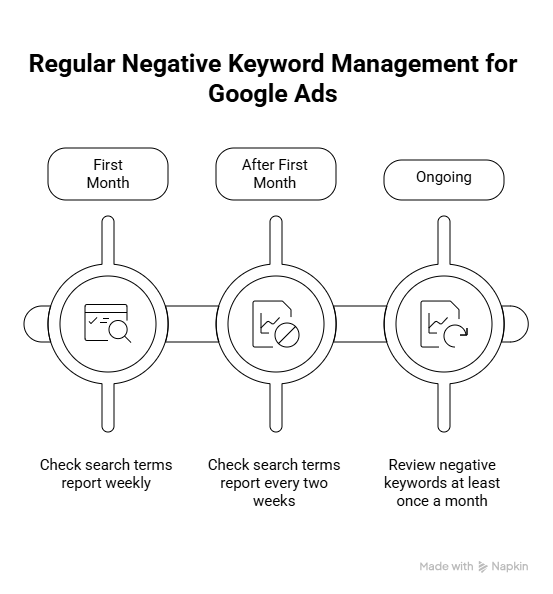
Adding negative keywords isn’t a one-time thing. Think of it like brushing your teeth—you need to do it regularly to keep things healthy! Here’s the schedule that works best:
First Month: Check your search terms report every week. This is when you’ll find the most new negative keywords to add because your campaigns are still learning.
After First Month: Check every two weeks. By now, you’ve caught most of the obvious bad keywords, so you won’t find as many new ones.
Ongoing: Set a reminder to review your negative keywords at least once a month. Search trends change, new products come out, and people search for things differently over time.
To check your search terms report, go to “Keywords” in your Google Ads account, then click on “Search terms.” This shows you exactly what people typed into Google before clicking on your ad. Look for searches that don’t match your business and add those words as negatives.
Common Mistakes to Avoid
Even though adding negative keywords is pretty simple, people make some common mistakes that can hurt their campaigns. Let’s make sure you don’t make these errors:
Mistake #1: Adding Too Many Negative Keywords
Some people go crazy and block everything they can think of. This might seem smart, but it can actually stop good customers from seeing your ads! Only block words that are clearly bad for your business.
Mistake #2: Using Broad Match for Everything
While broad match is great for most negative keywords, sometimes it blocks too much. If you notice your ads aren’t showing up as much anymore, you might have blocked some good searches by accident. Try using phrase match or exact match instead for some keywords.
Mistake #3: Not Checking for Conflicts
Make sure your negative keywords don’t accidentally block your regular keywords! For example, if you sell “running shoes” but add “shoes” as a negative keyword, you just blocked your own ads from showing. Whoops!
Mistake #4: Forgetting About Keyword Lists
Once you create a negative keyword list, it’s easy to forget about it. But what if your business changes? What if you start selling something new that you previously blocked? Review your lists every few months to make sure they still make sense.
Mistake #5: Not Using Match Types
Remember those symbols we talked about earlier? They’re not just decoration—they help you control exactly what gets blocked. Learn when to use broad, phrase, and exact match to get the best results.
Quick Tips for Success
Here are some final tips to make your negative keyword game super strong:
Start with the Obvious: Before you even launch a campaign, add the most obvious negative keywords like “free,” “cheap,” “jobs,” “careers,” “how to,” and “DIY” if these don’t apply to your business.
Use Categories: Organize your negative keywords into groups. Make one list for job-related words, another for competitor names, another for wrong products, etc. This keeps everything tidy.
Check Your Competitors: Think about other businesses in your industry. Are there brand names you want to block? Add them to your list!
Watch for Trends: During certain times of year, new irrelevant searches might pop up. For example, a business selling real plants might need to block “artificial” or “fake” around the holidays when fake Christmas trees are popular.
Keep Notes: When you add negative keywords, write down why you added them. This helps you remember later when you’re reviewing your lists.
Use Automation Tools: As your campaigns grow, consider using tools that automatically find negative keywords for you. These tools scan your search terms and suggest words to block, saving you tons of time.
Working with Professional Help
If all of this feels overwhelming, don’t worry! Many businesses use search engine marketing for small business services to handle their Google Ads management. Professional advertisers know exactly which negative keywords to add and can set everything up correctly the first time.
These experts also use advanced techniques like “query sculpting” and “n-gram analysis” to find hidden patterns in your search data. They can spot problem keywords you might miss and save you even more money on your ads.
What to Expect After Adding Negative Keywords
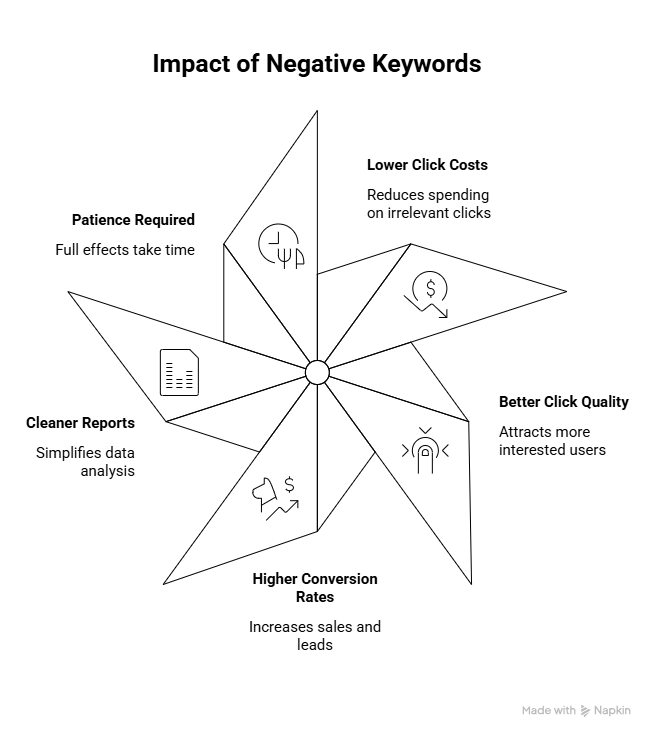
Once you add negative keywords, you should notice some changes in your campaigns within a few days:
Lower Click Costs: You’re not paying for useless clicks anymore, so your overall advertising costs should go down.
Better Click Quality: The people who do click your ads will be more interested in what you’re selling.
Higher Conversion Rates: Since you’re getting better quality clicks, more of those clicks should turn into actual sales or leads.
Cleaner Reports: Your search terms report will look much better because the junk searches are gone.
Don’t expect overnight magic, though. It usually takes a week or two to see the full effects of your negative keywords. Be patient and keep monitoring your results!
Your Next Steps
Now that you know how to add negative keywords in Google Ads, it’s time to take action! Here’s what to do today:
- Log into your Google Ads account right now
- Choose one campaign to start with (don’t try to do everything at once)
- Add 10-20 obvious negative keywords that don’t apply to your business
- Set a calendar reminder to check your search terms report next week
- Add any new negative keywords you find
If you haven’t yet reviewed what negative keywords are and how they work in Google Ads, that’s worth reading before you dive into adding them — it’ll help the whole process click.
Remember, every negative keyword you add is money saved and better results earned. Even adding just a few negative keywords can make a big difference in your advertising success!
The most important thing is to get started and keep at it. Adding negative keywords is like exercising—the hardest part is starting, but once you build the habit, it becomes easy and the results are totally worth it.
Good luck with your Google Ads campaigns, and remember: every successful advertiser started exactly where you are right now. You’ve got this!