
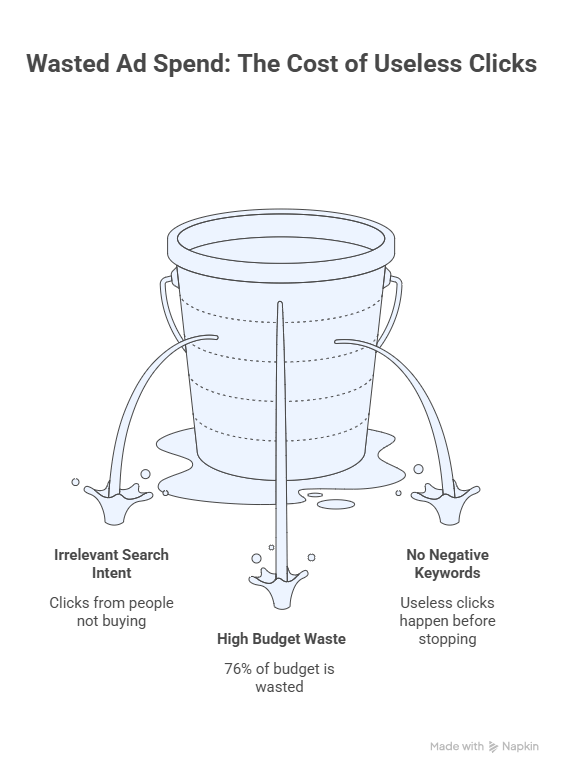
Imagine if you could stop wasting money on your Google Ads right now—today! The good news is you can, and it’s easier than you think. The secret weapon is learning how to find negative keywords that are draining your advertising budget. In this guide, we’ll show you exactly where to look and what to do to save thousands of dollars every year.
Why Finding Negative Keywords Matters
Before we dive into the “how,” let’s talk about the “why.” Every time someone clicks on your Google ad, you pay money. But what if half of those people are clicking because they’re looking for something you don’t even sell? That’s like paying for people to window shop at your store when they have no intention of buying anything!
Finding negative keywords helps you stop these useless clicks before they happen. It’s like putting up a sign that says “If you’re looking for free stuff, this isn’t the place.” You save money, attract better customers, and your ads work harder for you.
Studies show that most Google Ads accounts waste about 76% of their budget on clicks that don’t help the business. That means if you spend $1,000 on ads, about $760 of it goes down the drain! Learning how to find negative keywords can cut this waste by more than half. That’s real money back in your pocket!
If you want to understand more about how negative keywords work before we continue, take a moment to check out that guide. It will help everything else make more sense. You might also want to read our full explanation of what negative keywords are in Google Ads — including the different keyword types, common mistakes to avoid, and how Google’s 2026 updates make them even more powerful.
Method 1: Use Your Search Terms Report (The Best Way!)
The search terms report is like a treasure map that shows you exactly where your advertising dollars are going. It’s the number one place to find negative keywords, and it’s completely free—it’s already built into your Google Ads account!
How to Access Your Search Terms Report
Here’s how to find this goldmine of information:
- Log into your Google Ads account
- Click on “Keywords” in the left-hand menu
- Click on “Search terms” at the top of the page
- Sort the report by “Clicks” from highest to lowest
Now you’re looking at the actual words people typed before clicking your ad. This is powerful information!
What to Look For
As you scroll through this report, ask yourself these questions about each search term:
- Does this person want what I’m selling?
- Would this search ever lead to a sale?
- Is this completely unrelated to my business?
For example, if you sell new furniture and bid on the word “console” for your console tables, searches like “PlayStation 5” or “Xbox Series X” might slip through — those are perfect negative keywords to add. Gamers looking for a gaming system will never buy your furniture!
According to research from WordStream, most online stores see their click-through rates improve by 10-15% immediately after their first round of finding and adding negative keywords. That’s a huge boost for doing just a few hours of work!
Pro Tips for Search Terms Reports
Add the “Keyword” Column: This shows you which keyword triggered each search. This helps you understand why certain weird searches are showing up.
Look at Zero Conversion Searches: These are searches that got clicks but never led to a sale. They’re wasting your money!
Check Weekly: For the first month of any campaign, check this report every week. After that, you can review it every two weeks.
Method 2: Try Google Keyword Planner (Before You Launch)
What if you haven’t started your ads yet? You can still find negative keywords ahead of time using Google Keyword Planner. This free tool shows you related searches that people might type, and you can spot the bad ones before they cost you money.
Here’s how it works:
- Go to Google Keyword Planner (inside your Google Ads account)
- Type in your main keywords
- Look at all the suggestions Google shows you
- Identify any suggestions that don’t match your business
- Add those as negative keywords from day one
For example, if you’re a dentist and you search for “crowns,” Google might show you searches related to “Queen Elizabeth” or “The Lord of the Rings.” Obviously, people searching for royalty or movies aren’t looking for dental crowns! Add those as negatives right away.
Method 3: Think Like Your Customer (The Smart Search Test)
This is a simple but powerful trick: Actually go to Google and search for your keywords yourself. See what comes up!
When you search for your own keywords, you’ll quickly see how they could be misunderstood. Maybe your keyword could mean two completely different things. Maybe it’s the name of a place in two different countries. Maybe it’s a product name that’s also a song title or movie character.
Write down everything you see that doesn’t match your business. All of those discoveries become your negative keywords.
For businesses offering search engine marketing for small business services, this technique reveals how customers actually search and what confusion might exist in the market.
Method 4: Use AI-Powered Tools (The Fast Way)
Technology has made finding negative keywords much easier in 2026! New AI tools can scan your entire account in seconds and find problems you might miss.
Claude AI (The Newest Tool)
Claude AI can analyze your search terms and find negative keywords in about 90 seconds. It uses pattern recognition to spot waste that humans often miss during manual reviews. Many businesses find between $2,000 and $5,000 in wasted spending every month using this approach!
The best part? Claude explains exactly why each search term is wasting money, so you learn while you save.
Other Popular Tools
Keywordme ($12/month): This Chrome extension works right inside your Google Ads search terms report. One click adds a negative keyword without any spreadsheet exports or complicated steps.
Optmyzr (Free for small accounts): This tool automatically scans your search terms from the last 90 days and shows you which ones never converted. It breaks everything down into individual words so you can see patterns.
Cascader (AI-powered): This tool connects to your account and highlights wasted spending with clear explanations. It runs in read-only mode until you approve changes, so it’s very safe to use.
These tools save professional advertisers 3-4 hours every week. Instead of manually reviewing hundreds of search terms in spreadsheets, the AI does it in minutes!
Method 5: N-Gram Analysis (The Pattern Detective)
This might sound complicated, but it’s actually really simple. N-gram analysis just means breaking your search terms into smaller pieces to find patterns.
Instead of looking at complete searches like “cheap airline tickets” and “cheap airline packages” separately, you look at the word “cheap” by itself. If “cheap” appears in 50 different searches and none of them ever convert, you know “cheap” is a negative keyword you should add.
Here’s why this matters: You might have 500 different search terms in your account. Reviewing all 500 individually would take forever! But if you break them down into single words and two-word phrases, you might find that just 10-15 words appear in most of the bad searches. Add those 10-15 words as negatives, and you’ve cleaned up hundreds of wasteful searches at once.
Many of the AI tools mentioned above do n-gram analysis automatically. They show you which individual words are costing you money across all your search terms.
Method 6: Check Customer Support Tickets
This is a technique most people never think about! Look at your customer support emails and sales call notes. What do confused customers ask about?
If people keep contacting you thinking you offer services you don’t actually provide, those misunderstandings probably happen in Google searches too. Add those service names or product types as negative keywords.
For example, if you run a store that only sells new furniture but gets weekly calls asking about repairs, “furniture repair” should be a negative keyword. Those searchers aren’t your customers.
Method 7: Study Your Competitors
Take a look at what keywords your competitors are bidding on. Tools like SEMrush can show you this information. When you see their keywords, think about which ones don’t apply to your business.
Maybe your competitor sells both new and used products, but you only sell new items. Add “used,” “second-hand,” and “refurbished” as negative keywords for your account.
Or maybe they offer services you don’t provide. Those service names become your negative keywords.
This technique is especially helpful for businesses working with professional PPC Management For Small Business teams who regularly analyze competitive landscapes.
Method 8: Build Category Lists (Stay Organized!)
Once you start finding negative keywords, organization becomes important. Instead of adding them randomly, create categories or lists:
Job Seekers List: careers, employment, hiring, salary, jobs, resume, apply, recruit
Zero-Cost Seekers List: free, gratis, no cost, complimentary, download free, free trial
DIY Crowd List: DIY, how to make, homemade, tutorial, instructions, build your own, recipe
Wrong Product List: (specific products you don’t sell)
Competitor Brands List: (your competitors’ company names)
Geographic Exclusions: (places you don’t serve)
Why create lists? Because you can apply the same list to multiple campaigns with one click! You save tons of time, and you make sure you don’t forget important negatives when you create new campaigns.
Google Ads lets you create up to 20 negative keyword lists, and each list can hold 5,000 keywords. That’s plenty of room for even the biggest accounts! For step-by-step instructions on creating and applying these lists inside your Google Ads account, see our guide on how to add negative keywords in Google Ads — it covers the shared library method, account-level negatives, and Performance Max campaigns.
Method 9: Look for Location Mix-Ups
Some city names or business terms exist in multiple places. For example, “Halifax” is a city in both Canada and the United Kingdom. If you’re a business in Halifax, Nova Scotia, you’ll want to add “England,” “UK,” and “West Yorkshire” as negative keywords.
The same thing happens with product names. A search for “charger” could mean someone wants a phone charger, a Dodge Charger car, or a power tool battery pack. Make sure you’re only showing up for what you actually sell!
Creating Your Negative Keyword Workflow
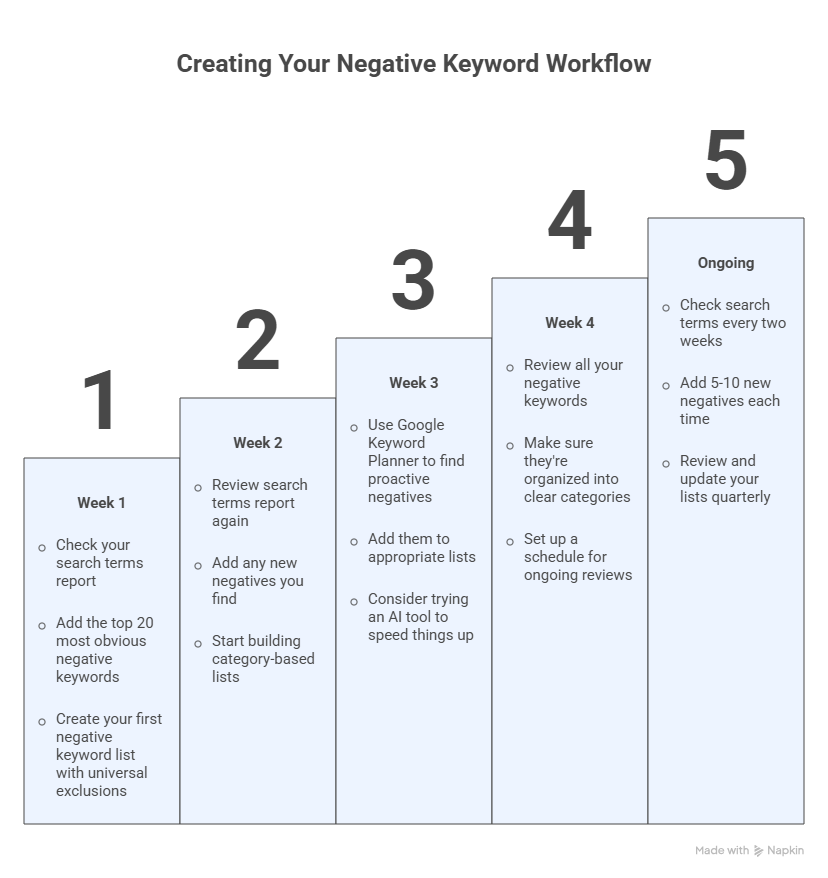
Now that you know all these methods, here’s how to put them together into a system that works:
Week 1:
- Check your search terms report
- Add the top 20 most obvious negative keywords
- Create your first negative keyword list with universal exclusions
Week 2:
- Review search terms report again
- Add any new negatives you find
- Start building category-based lists
Week 3:
- Use Google Keyword Planner to find proactive negatives
- Add them to appropriate lists
- Consider trying an AI tool to speed things up
Week 4:
- Review all your negative keywords
- Make sure they’re organized into clear categories
- Set up a schedule for ongoing reviews
Ongoing:
- Check search terms every two weeks
- Add 5-10 new negatives each time
- Review and update your lists quarterly
How Many Negative Keywords Should You Have?
A common question people ask is: “How many negative keywords is too many?”
Here’s the truth: Professional Google Ads accounts typically have 3 to 5 times MORE negative keywords than regular keywords! That might sound crazy, but it makes sense when you think about it.
If you’re targeting 100 good keywords, you might need to block 300-500 bad variations of those keywords. This ratio develops naturally over time as you keep finding and adding negatives.
New accounts should start with 50-100 negative keywords before launching. Mature accounts often have 200-500 negatives spread across different lists.
Common Mistakes to Avoid
Mistake #1: Adding Negatives Too Quickly
Don’t add a keyword as negative after just 3-5 clicks with no sales. You need at least 15-20 clicks to really know if something works or not. Small sample sizes can be misleading!
Mistake #2: Using Only Broad Match
Broad match negative keywords block a lot, which can accidentally stop good searches too. Mix in some phrase match and exact match negatives for better control. If you’re not sure when to use which type, our guide on negative keywords match types explains the differences clearly — including why broad match actually behaves the opposite of what most people expect.
Mistake #3: Never Reviewing Your Lists
Your business changes over time. You might start offering new products or services. Check your negative keyword lists every few months to make sure you’re not blocking things you now want to show up for!
Mistake #4: Forgetting About Match Types
Remember: negative broad match blocks searches containing all your words in any order. Negative phrase match blocks the exact phrase in that specific order. Negative exact match only blocks that precise search. Use the right type for the right situation!
Advanced Tips for Power Users
Once you’ve mastered the basics, try these advanced techniques:
Seasonal Adjustments: Some keywords are only bad during certain times of year. Create seasonal negative lists you can turn on and off as needed.
Performance-Based Rules: Set up rules that automatically suggest negatives for any search term that gets 20+ clicks with zero conversions.
Cross-Campaign Analysis: Look for search terms that perform poorly in one campaign but might work in another. Traffic sculpting helps route searches to the best campaign.
Intent-Based Categories: Organize negatives by what the searcher actually wants—research-driven queries (how to, guide, tutorial), job-related searches (careers, salary), and transactional searches gone wrong (free, cheap).
What Results to Expect
When you start finding and adding negative keywords regularly, here’s what typically happens:
Within 1 Week: You’ll notice fewer completely irrelevant clicks. Your click-through rate will start to improve.
Within 2-4 Weeks: Your cost per click might drop as your Quality Score improves. You’ll see better conversion rates because the clicks you’re getting are from more interested people.
Within 2-3 Months: Your overall advertising costs will be lower while your results stay the same or improve. You’re getting more bang for your buck!
Most businesses find they can reduce wasted ad spend by 60-80% just by maintaining a solid negative keyword strategy. That’s money you can reinvest into growing your business!
Your Action Plan Starting Today
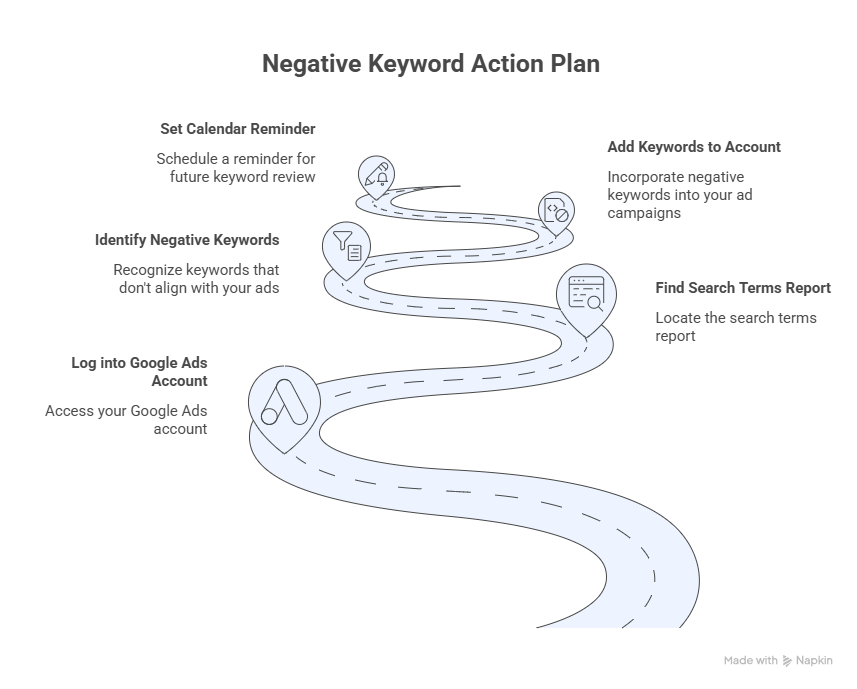
Don’t let this information just sit in your head. Take action right now! Here’s what to do:
- Log into your Google Ads account
- Find your search terms report
- Identify 10 obvious negative keywords
- Add them to your account (or create your first list)
- Set a calendar reminder for next week to do it again
Even spending just 20 minutes per week finding negative keywords will transform your advertising results over time. It’s one of the easiest ways to improve your Google Ads performance without spending more money.
Remember: every negative keyword you find is money saved. You’re not just blocking bad searches—you’re protecting your budget so it can work harder on the searches that actually matter!
Getting Professional Help
If this all feels overwhelming, you’re not alone. Many successful businesses work with professional advertising teams who handle negative keyword management as part of their service. These experts use advanced tools and techniques to find negative keywords you might miss.
They also understand the tricky parts, like when to use broad versus exact match, how to organize complex accounts, and how to use advanced features like traffic sculpting and n-gram analysis.
Whether you do it yourself or get help, the important thing is to START. Finding negative keywords isn’t optional anymore—it’s essential for success with Google Ads in 2026.
So what are you waiting for? Open that search terms report and start saving money today!