
f you’re dealing with Trouble Logging Into WordPress, you’re not alone—and you’re not crazy. Login problems often show up out of nowhere: your password suddenly “stops working,” the reset email never arrives, wp-admin keeps looping, or you hit a 403/429 error like you’ve been banned from your own site. The worst part is the uncertainty—because random fixes can waste hours (or even lock you out harder).
Here’s the good news: most cases of Trouble Logging Into WordPress come down to a small handful of causes—credentials, cookies/cache, plugin/theme conflicts, security blocks, or a URL/HTTPS mismatch. The fastest way to fix it is not to install a new plugin or start deleting files. It’s to identify the symptom first, then apply the safest fix path in the right order.
This guide is built like a troubleshooting checklist you can run under pressure. We’ll start with quick wins that don’t risk breaking anything (like testing in a private window and confirming whether it’s a browser issue). Then we’ll move into controlled tests (like isolating plugins) and only go deeper—database-level recovery, permissions, hosting rules—if the earlier steps don’t work.
In the next section, you’ll run a simple 5-minute diagnosis that tells you exactly which direction to go. If you want a shortcut: treat Trouble Logging Into WordPress like a decision tree—capture what you’re seeing, pick the matching path, and validate access before making the next change.
Ready? Let’s diagnose it the smart way.
Trouble Logging Into WordPress: 5-Minute Diagnosis Checklist
Before you change anything, run this quick checklist. It’s designed to pinpoint why you’re locked out so you don’t waste time on fixes that don’t match your symptom. Most Trouble Logging Into WordPress situations fall into a few predictable buckets—and you can usually identify the right one in minutes.
Confirm the symptom (what exactly is happening?)
Pick the closest match:
- “Incorrect password” even though you’re sure it’s right
- Password reset email never arrives
- Redirect loop (wp-admin/wp-login keeps bouncing you around)
- Blank/white screen or “There has been a critical error”
- 403 Forbidden / 429 Too Many Requests / “You’ve been blocked”
- Login page won’t load or times out
Now do two fast checks:
- Open a private/incognito window and try again (rules out cookie/session weirdness).
- Try from a different device or network (phone on cellular is perfect). If it works elsewhere, your issue is likely browser/cookies or an IP/security block—not your credentials.
Capture the error + quick “site health” checks
Don’t rely on memory—note what you see:
- Copy the exact error text (even if it feels generic).
- Confirm your login URL: go directly to
/wp-login.php(not just/wp-admin/). - If the site homepage loads but login doesn’t, you’re likely dealing with a login-specific block (security plugin/WAF/rate limiting) or a redirect/cookie issue.
- If both the homepage and login are broken, think hosting/PHP error, plugin crash, or (rarely) compromise.
Choose your fix path (so you stop guessing)
Use this decision tree to choose your next section:
- Path A — Credentials/Email: wrong password, reset email missing, username confusion
- Path B — Browser/Cookies/Redirects: redirect loop, “cookies are blocked,” works in incognito
- Path C — Plugin/Theme/Security: 403/429, blocked message, issue started after an update
- Path D — Hosting/Server: critical error, white screen, timeouts, permissions issues
- Path E — Possible compromise: new admin user, weird redirects, spam pages, sudden changes
Once you’ve picked the path, your fix becomes simple and controlled—and Trouble Logging Into WordPress stops being a mystery problem and turns into a straightforward checklist.
Fast Fixes First (Passwords, Email Reset, and Usernames)
If your diagnosis points to credentials or password reset issues, start here. A lot of Trouble Logging Into WordPress cases are just “simple-but-annoying” problems: the wrong username, a cached login session, or reset emails getting swallowed. The goal is to regain access without triggering lockouts or making bigger changes.
Reset password safely (without getting locked out)
Do these in order:
- Try the obvious (yes, really): Caps Lock, keyboard language (EN/ES), and whether your password manager is filling the right site.
- Go straight to
/wp-login.php→ “Lost your password?” and enter the email address you know is tied to the user account. - If you’ve tried multiple times already, stop for a minute. Some security plugins/hosts rate-limit attempts and can escalate Trouble Logging Into WordPress into a temporary block.
- If you have another admin user on the site, log in with that account and reset your main admin password from Users → Profile (cleanest path).
Quick sanity check: If the password reset page says it sent an email but nothing arrives, you’re likely in the “email deliverability” bucket—not a password bucket.
Password reset email not arriving (deliverability triage)
Before you change site settings, do this:
- Check Spam/Promotions/Updates and search your inbox for:
WordPress,wp-admin, your domain name, and “password reset”. - If you use Google Workspace / Outlook, check Quarantine / Junk rules and any “blocked sender” lists.
- Confirm the reset is going to the correct email (common when old staff emails were used).
- If you manage the domain, check whether mail is being sent at all (many hosts block PHP mail by default).
If the email is still missing, treat this as a Trouble Logging Into WordPress + email system issue. The reliable long-term fix is SMTP (we’ll cover the clean setup later), but you can keep moving right now using an alternate admin or database-level recovery if necessary.
Wrong username or changed admin email (the sneaky one)
This happens constantly:
- On the login screen, click “Lost your password?” and try each email address that could realistically be tied to the site (owner, dev, agency, generic inbox).
- If you have access to hosting, look for user lists in your WordPress dashboard (if any other account works) and confirm the exact username/email.
- If the admin email was changed (or you inherited the site), your quickest path out of Trouble Logging Into WordPress is:
- log in with any other admin, or
- jump to the “roles/database recovery” section later (safe, step-by-step, no guessing).
Next up: if credentials aren’t the issue, we’ll tackle the most common time-waster—cookies, cache, and redirect loops.
Browser, Cache, Cookies, and Redirect Loops
If logging in works on another device (or in incognito), your credentials are probably fine. This is where a lot of Trouble Logging Into WordPress pain lives: stale cookies, aggressive caching, or a URL/HTTPS mismatch that keeps bouncing you back to the login screen.
Clear the right cookies + test clean
Do this in order (fast + low risk):
- Open an Incognito/Private window and try
yourdomain.com/wp-login.php. - If that works, clear site-specific cookies (don’t nuke everything unless you want to):
- In Chrome: Settings → Privacy → “See all site data and permissions” → search your domain → Remove
- Disable browser extensions temporarily (especially password managers, ad blockers, privacy tools).
- Try a different browser (Chrome ↔ Firefox) to confirm it’s not a local session issue.
Fix “cookies are blocked” and login loops
Common loop symptoms:
- You log in, then it refreshes and asks you to log in again.
/wp-adminkeeps redirecting back to/wp-login.php.- You see a message like “Cookies are blocked” even when they aren’t.
Quick fixes:
- Confirm your WordPress Address + Site Address are consistent (http vs https, and www vs non-www). Mismatches cause endless loops.
- If you recently forced HTTPS, make sure your site isn’t half-on HTTP and half-on HTTPS.
- If you use a CDN/WAF (like Cloudflare) or a caching layer, temporarily disable “cache everything” rules for
wp-login.phpand/wp-admin/.
If you changed SSL or the domain recently
This is the classic redirect-loop trigger:
- Make sure the login URL you’re using matches the “final” version of the site (https + preferred domain).
- If you have access to hosting, check whether there are multiple redirect rules stacking (plugin + .htaccess + CDN). Too many cooks = Trouble Logging Into WordPress loops.
Next up: if the issue started after an update—or you’re seeing blocks like 403/429—we’ll isolate plugin/theme/security conflicts safely.
Trouble Logging Into WordPress After Updates: Plugin/Theme Conflict Fixes
If the lockout started right after a plugin/theme update (or a “security hardening” change), assume a conflict until proven otherwise. This is one of the most common causes of Trouble Logging Into WordPress—and the fix is usually straightforward if you isolate changes calmly instead of reinstalling everything.
Isolate plugin conflicts (disable all → re-enable in batches)
Safest workflow:
- Don’t delete plugins yet. First, disable them temporarily so you can test.
- If you can access your server via File Manager / FTP:
- Go to
wp-content/ - Rename
plugins→plugins_disabled - Try logging in again at
/wp-login.php
- Go to
- If you can log in now, a plugin conflict (or security rule) caused the issue.
Now re-enable in a controlled way:
- Rename
plugins_disabledback toplugins - Inside the
pluginsfolder, rename plugin folders one by one (or in small batches) to disable/enable and test. - Start with the usual suspects:
- Security plugins / login limiters
- Cache/performance plugins
- Redirect/SSL plugins
- 2FA plugins
Goal: identify the one plugin that flips the site back into Trouble Logging Into WordPress mode.
Theme switch test + login behavior checks
If plugins aren’t the culprit, themes can still break login flows (especially with custom login pages or heavy functions).
- If you have file access, temporarily switch to a default theme by renaming the active theme folder in:
wp-content/themes/your-active-theme→your-active-theme_disabled
- WordPress will fall back to a default theme (like Twenty Twenty-Three) if it exists.
- Re-test login. If it works, you’re dealing with a theme function conflict, custom login override, or a compatibility issue introduced by an update.
Security/WAF plugins causing lockouts (rate limits, country blocks)
If you’re seeing 403 Forbidden, 429 Too Many Requests, or “you’ve been blocked,” it’s usually a security layer—not your password.
Common triggers:
- Too many attempts (even legitimate ones)
- VPN/proxy/IP reputation issues
- Geo-blocking
- Overlapping rules (plugin + host firewall + CDN/WAF)
Fix approach:
- Temporarily disable the security plugin using the plugin folder rename method above.
- If you use a CDN/WAF, check for blocks on
/wp-login.phpand/wp-admin/. - Once you’re back in, re-enable protections with sane limits (and add your IP to allowlists where appropriate).
Rollback strategy (last update, staging, change log discipline)
Once you find the offender, don’t “random update” your way forward.
- Roll back that plugin/theme to the last stable version only if you can do it safely.
- Re-apply updates on a staging site first (or at minimum: backup + one change at a time).
- Document what changed (plugin version, settings toggled). This prevents repeat Trouble Logging Into WordPress incidents later.
Next up: if none of this fixes it—or you have no admin access at all—we’ll cover role/user issues and safe database-level recovery steps.
User Roles, wp_users, and Database-Level Fixes
If you still have Trouble Logging Into WordPress after the “safe” fixes, the issue may not be your password at all—it might be roles/permissions (your account lost admin privileges), a corrupted user meta record, or a broken login flow caused by a bad update. This section is powerful, so treat it like surgery: backup first, change one thing, test, then stop.
Restore admin access via database (safe checklist + what not to touch)
Before you touch anything:
- Backup your database (export in phpMyAdmin / your host panel). If something goes wrong, this is your undo button.
- Confirm your table prefix in
wp-config.php(it’s not alwayswp_). You’ll need the correct prefix to find the right tables.
Now choose the safest recovery route you have:
- Best option (least risk): If you can use WP-CLI, reset the password for your user from the server and log in normally.
- Common option: Use phpMyAdmin to verify your user exists in the
{prefix}_userstable (email + username match what you expect). - If you can’t receive reset emails and need immediate access, set a temporary password using the host tools only if you control the server/database. After you regain access, immediately change it again from WordPress and rotate any reused passwords.
What not to do:
- Don’t delete random rows in
users/usermeta. - Don’t “clean up” unknown users until you’ve confirmed the site isn’t compromised (you could destroy forensic clues).
Fix corrupted user_meta/capabilities + role issues
A very common lockout pattern: you can log in, but you don’t see admin menus or you get “Sorry, you are not allowed…”
- Check whether your account still has an Administrator role in the dashboard (if you can access Users).
- If you can’t access the dashboard, the likely culprit is missing or corrupted
{prefix}_usermetaentries for your user—especially the capabilities/level fields. - Once you regain admin access, re-save permalinks and review role/security plugins that might be rewriting permissions.
Multisite edge cases (super admin vs site admin)
On WordPress Multisite, being “admin” on a site isn’t always enough—you may need Super Admin in Network Admin. If Trouble Logging Into WordPress only happens on one site in the network (or you can log in but can’t manage network settings), check whether your user is listed as a super admin and confirm you’re using the correct network login URL.
Next up: if roles check out but login still breaks, we’ll look at hosting-level causes—PHP errors, permissions, .htaccess, and caching layers.
Hosting + Server Issues (PHP, Memory, Permissions, and wp-login.php)
If you’ve tried the safe fixes and you still have Trouble Logging Into WordPress, the problem may be happening before WordPress can even complete the login process—PHP errors, low memory, bad permissions, or server rules blocking wp-login.php. This section focuses on high-impact checks that don’t require “rebuilding the site.”
PHP errors/logs + memory/timeouts to check first
Login failures often look “random” when they’re really server errors in disguise.
- Check for a critical error email (WordPress sometimes emails the admin with a recovery link).
- If you have hosting access, look at:
- error logs (PHP error log, web server error log)
- recent fatal errors tied to a plugin/theme file
- Common server-side culprits:
- PHP memory exhausted (often shows as white screen / critical error)
- Execution timeouts during login
- Object cache errors (Redis/Memcached misconfig)
- If you can edit
wp-config.php, you can temporarily enable logging (don’t leave it on forever):- Log errors, reproduce the login attempt once, then review what broke.
If your logs point to one plugin/theme file repeatedly, jump back to the conflict isolation flow—your “Trouble Logging Into WordPress” is being caused by a crash during authentication.
File permissions + .htaccess rules blocking login
403 errors or login pages that won’t load can come from permissions or rewrite rules.
Quick checks:
- Ensure
wp-login.phpexists in the WordPress root and hasn’t been renamed or blocked. - Verify sane permissions (hosting panels often show this):
- Folders typically
755 - Files typically
644
- Folders typically
- Review
.htaccessfor rules that might blockwp-login.phpor/wp-admin/:- Over-aggressive security rules
- Incorrect rewrite rules after SSL/domain changes
- Stacked redirects (HTTP→HTTPS plus www↔non-www plus plugin redirects)
If you’re unsure, temporarily rename .htaccess to test. If login suddenly works, the issue lives in rewrite/security rules.
Cache/Session Issues (Object-Level, CDN, or Host)
It’s rare, but caching layers can interfere with login sessions:
- Exclude these from “cache everything” rules:
/wp-login.php/wp-admin/*/?loggedout=true
- If you use Cloudflare or another CDN/WAF, confirm it’s not caching the login page or applying bot protection too aggressively.
- If you have Redis/object cache enabled, temporarily disable it to test session behavior.
Next up: we’ll cover security blocks (firewalls, rate limits, 2FA lockouts) and how to regain access without weakening your site long-term.
Security Blocks (Firewall, Rate Limits, 2FA) — Regain Access Safely
If you’re seeing 403 Forbidden, 429 Too Many Requests, “Access Denied,” or a CAPTCHA loop, your credentials might be fine—you’re being blocked by a security layer. A lot of Trouble Logging Into WordPress cases are really “your site protecting itself,” sometimes too aggressively.
Identify IP blocks / 403/429 patterns + whitelist steps
Do these quick tests:
- Try logging in from a different network (phone on cellular).
- If it works there, your original IP is likely rate-limited or blocked.
- Look for patterns:
- 403 = rule-based block (WAF, security plugin, host firewall)
- 429 = rate limit (too many attempts, bot protection)
Recovery steps (safest order):
- If you have hosting/CDN access, temporarily disable the firewall rule set only for
wp-login.phpand/wp-admin/(don’t shut everything off site-wide). - In your security plugin (Wordfence, iThemes, etc.), check Live Traffic / Blocked IPs and allowlist your IP.
- If your host has a WAF (or you’re using Cloudflare), check the security events and create a rule to allow your IP for login endpoints.
2FA recovery (backup codes + emergency disable path)
If 2FA is the blocker (lost device, expired codes), don’t brute-force logins—this often triggers more blocks and extends Trouble Logging Into WordPress.
- Use backup codes if you have them.
- If you have server/file access, you can temporarily disable the 2FA plugin (rename its folder) to regain entry, then re-enable and reconfigure 2FA properly.
Secure re-entry (don’t leave the door open)
Once you’re back in:
- Rotate the admin password, review recent login attempts, and confirm no unknown admin users exist.
- Re-enable protections with sane thresholds (limit login attempts, but avoid self-lockouts).
Next up: we’ll lock in prevention—so this doesn’t happen again.
Prevent the Next Lockout (Hardening + Maintenance)
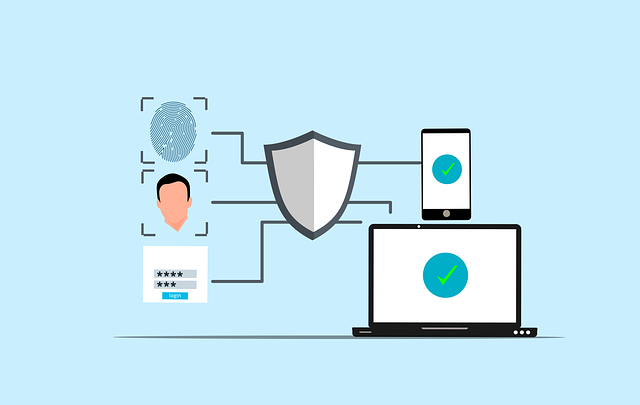
Once you’ve regained access, don’t just move on—this is where you eliminate the conditions that caused Trouble Logging Into WordPress in the first place. Most lockouts repeat because the underlying setup stays fragile: updates happen without a rollback plan, security rules stack up, or email/password recovery isn’t reliable.
Update strategy (staging, rollback points, scheduled windows)
- Use a staging site (or at minimum a full backup) before updating plugins/themes/core.
- Update in a controlled order: core → plugins → theme, and test login after each step.
- Avoid “update everything at once.” That’s how you end up with Trouble Logging Into WordPress and no clue what changed.
- Keep a rollback option ready (backup + known-good plugin versions).
Backups that actually restore (frequency + test restores)
- Schedule automatic backups:
- Database: daily (or more often for ecommerce)
- Full site files: weekly (or based on change frequency)
- Store backups offsite (not only on the same server).
- Do a restore test monthly. A backup you’ve never restored is a guess, not protection.
Monitoring + alerts (catch issues before they become lockouts)
- Enable alerts for:
- Repeated failed login attempts
- File changes (unexpected edits in core/plugin files)
- New admin users / role changes
- Review security logs weekly—especially if Trouble Logging Into WordPress was triggered by firewall blocks or rate limits.
Admin access best practices (least privilege, fewer moving parts)
- Keep the number of admin accounts small; use Editor/Manager roles where possible.
- Turn on 2FA for admins, but store backup codes securely.
- Avoid stacking multiple security/caching plugins that overlap—conflicts are a common lockout trigger.
- Make password reset reliable (SMTP + proper domain email setup) so recovery is painless.
Next up: a quick recap and what to do if you’re still stuck (including when it’s smart to escalate to hosting or a WordPress pro).
Conclusion: Get Back In — Then Make Sure It Doesn’t Happen Again
If you made it this far, you’ve already done the most important thing: you stopped guessing and started troubleshooting in a safe order. Most login issues come from a small set of causes—credentials, cookies/redirects, plugin/theme conflicts, security blocks, or hosting-level errors—and once you match the symptom to the right fix path, the solution usually becomes obvious.
If you’re still dealing with Trouble Logging Into WordPress after running the checklist, that’s your signal to escalate smartly, not randomly. Prioritize getting clean access first (without weakening security), then document what triggered the lockout so it doesn’t repeat on the next update.
Here’s what “done” looks like:
- You can log in reliably from multiple devices/networks
- Password reset works (emails arrive fast)
- Login endpoints aren’t cached or blocked incorrectly
- Admin access is protected with 2FA + backups you’ve tested
If the site handles payments, customer data, or you’re seeing unknown admin users / suspicious redirects, don’t wrestle with it alone—get hosting logs reviewed and have a pro audit the entry point. It’s cheaper than a repeat incident.