


WordPress Hacks: Incidents, Signs, and What to Do Next
If you’re here because you suspect WordPress hacks, you’re not being paranoid. Most hacked WordPress sites don’t “crash” dramatically, they get quietly compromised: a weird redirect, spam pages showing up in Google, a new admin user you didn’t create, or your site suddenly getting flagged as unsafe.
The tricky part is that WordPress hacks often look like “random glitches” at first. A plugin update fails. The site gets slower. Your homepage looks normal, but visitors on mobile get redirected to a sketchy page. Or everything looks fine until your rankings drop and you discover dozens (or hundreds) of junk URLs indexed under your domain.
This guide breaks down WordPress hacks in a way that’s actually useful when you’re under pressure:
- The most common hack incidents (redirects, SEO spam, backdoors, admin takeovers)
- The fastest signs to confirm whether you’re dealing with a real compromise
- What to do in the first 30–60 minutes to contain damage
- How cleanup works, and how to prevent it from happening again
Important note: The goal isn’t just to “remove malware.” It’s to stop the attacker’s access, clean the infection safely (files + database), and close the hole that let them in. Otherwise, the same incident tends to repeat, and it’s usually worse the second time.
What “WordPress Hacks” Actually Means
When people say WordPress hacks, they’re usually describing one of three things:
- Unauthorized access
Someone gains access to your WordPress admin, your hosting account, your database, or your files (often without you noticing right away). - Malicious code on your site
Your site files or database get infected with code that does something you didn’t approve: redirects, spam pages, hidden links, popups, crypto miners, phishing, or email spam. - A security breach incident with real business impact
Even if your site “looks fine,” WordPress hacks can trigger serious consequences: Google warnings, lost rankings, lost leads, blocked ads, payment processor flags, or your domain/email reputation getting damaged.
Hack vs. Malware vs. Breach (quick definitions)
- Hack (the event): The attacker gets in or manipulates something they shouldn’t be able to.
- Malware (the payload): The harmful code they leave behind to keep control or make money.
- Breach (the damage): The results of the incident (data exposure, account takeover, defacement, SEO spam, etc.).
A big misconception is thinking “my site was hacked” only counts if the homepage is defaced. In reality, the most common WordPress hacks are designed to be invisible to you and visible to search engines or to specific visitors. That’s why your site can look “fine” while Google is indexing spam pages or visitors are being redirected.
Why WordPress sites get targeted so often
WordPress isn’t “insecure by default.” It’s targeted because it’s everywhere and because most sites run a mix of plugins, themes, and custom snippets that don’t always stay updated. Attackers run automated scans across the internet, looking for predictable weaknesses, and exploit them at scale.
- Plugins and themes (the #1 risk area when outdated or poorly coded)
- Login pages that get attacked constantly via brute force or stolen passwords
- Shared hosting environments where one weak site can affect others
- Old installs that haven’t been updated in months or years
- “Nulled” plugins/themes that include hidden backdoors
The Most Common WordPress Hack Incidents
Most WordPress hacks fall into a handful of repeatable patterns. That’s good news, because once you know the “usual suspects,” you can diagnose faster and avoid guessing. Below are the most common incidents, what they look like, and the first action to take.
Redirect hacks (visitors get sent to spam or phishing)
What you’ll notice: your site randomly redirects to gambling, adult, pharmacy, or “virus warning” pages. It may only happen on mobile, only for visitors coming from Google, or only when you’re logged out (very common).
Why it happens: injected JavaScript or PHP checks the visitor type (device, referrer, country) and only triggers the redirect for targets that make money.
First action: test in incognito from another device/network, then disable plugins (and if needed, switch to a default theme) to isolate what’s triggering it.
SEO spam incidents (spam pages showing up in Google)
What you’ll notice: strange pages indexed under your domain, foreign-language titles, pharma/casino terms, and search results showing titles/descriptions you didn’t write. Rankings can drop because Google loses trust.
Why it happens: attackers inject spam pages into the database, alter sitemap output, or add “doorway pages” that show only to Googlebot. Some malware hides the spam from normal visitors to reduce the chance you’ll notice.
First action: search Google for site:yourdomain.com and check Search Console if you have it. Screenshot or record examples so you can confirm removal later.
Rogue admin user / wp-admin takeover
What you’ll notice: you can’t log in, your password “stops working,” your admin email changes, or you see an admin account you didn’t create.
Why it happens: credential stuffing (reused passwords from other breaches), no MFA, no rate limiting, or compromised hosting credentials that allow direct database edits.
First action: rotate passwords for WordPress, hosting panel, SFTP/SSH, and the database (and update wp-config.php). Then review all users and remove unknown admins (after you’ve taken a backup).
Plugin or theme backdoors (the hacker keeps coming back)
What you’ll notice: you clean the site, but it gets reinfected days later. Suspicious files reappear. Or you fix redirects, but they return after you “restore everything.”
Why it happens: a vulnerable plugin/theme is left installed (even if deactivated), a nulled plugin shipped with a backdoor, or persistent scripts were dropped in places most people don’t check (uploads, mu-plugins, obscure theme files).
First action: delete unused plugins/themes completely and reinstall clean copies from trusted sources. If reinfection is fast, suspect hosting-level compromise or missed backdoors.
Malware hidden in uploads (yes, it happens a lot)
What you’ll notice: random .php files inside /wp-content/uploads/ (uploads should mostly be images/docs). Hosting scans may flag “suspicious script in uploads.”
Why it happens: uploads directories are writable and sometimes misconfigured to allow PHP execution. Attackers love them for persistence.
First action: remove PHP files from uploads and block PHP execution in uploads via server rules if possible.
Signs Your Site Was Hacked (Fast Checks That Actually Work)
When WordPress hacks happen, the goal is usually to stay hidden long enough to make money: redirect traffic, rank spam pages, steal form submissions, or keep a backdoor for later. So instead of waiting for your homepage to “look hacked,” use these fast checks.
- Google warnings or security labels: Chrome “Deceptive site,” Search results that say “This site may be hacked,” or host malware alerts.
- Spam pages indexed: search
site:yourdomain.comand open unfamiliar results. - Redirects you can’t reproduce while logged in: test incognito, then test on phone + cellular data.
- Unknown admin users: check Users → All Users and verify every admin.
- Unexpected plugins / mu-plugins: anything you don’t recognize is suspect.
- Recently modified files at odd times: sort by “Last Modified,” especially in uploads, mu-plugins, and theme folders.
- Unexplained slowdowns or spikes: sudden CPU usage can indicate malicious scripts (not always, but a strong signal combined with other signs).
- Email deliverability problems: forms stop arriving, domain lands in spam, or host reports outbound spam.
If two or more of these signs match, treat it as a real WordPress hacks incident and move into containment mode.
What To Do Immediately (First 30–60 Minutes)
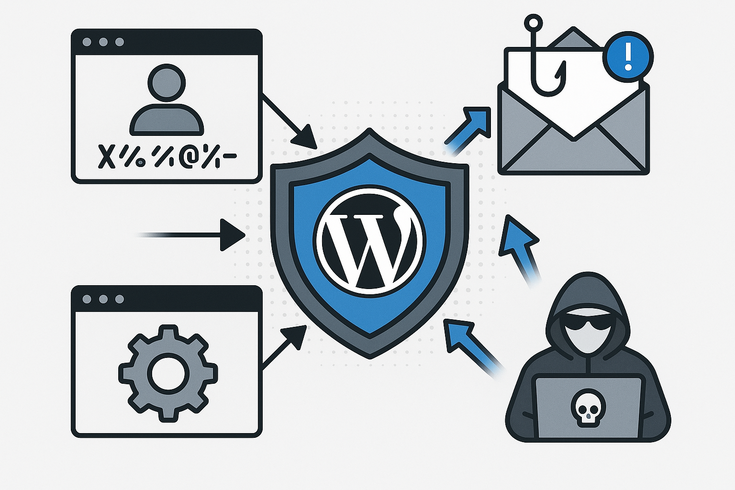
When you suspect WordPress hacks, speed matters, but so does discipline. The biggest mistake is randomly deleting files or running a “cleanup” without first cutting off access. Your goal in the first hour is simple:
- Contain the damage
- Cut off access
- Preserve evidence (so you can fix the root cause)
1) Put the site in maintenance mode (or limit public access)
If visitors are being redirected, forms may be compromised, or Google is warning users, don’t keep sending traffic to a potentially unsafe experience. Maintenance mode reduces harm while you investigate.
2) Back up the current state (yes, even if it’s infected)
This gives you a rollback point if cleanup breaks something and helps with forensics. Back up both the files and the database, and label it clearly as “infected backup” so you don’t restore it later by accident.
3) Rotate credentials in the right order
Changing only your WordPress password won’t help if the attacker also has hosting or database access. Rotate access broadly and assume multiple credentials may be compromised.
- Hosting control panel password
- SFTP/SSH/FTP credentials (revoke unknown users/keys)
- WordPress admin passwords (all admins)
- Database password (and update
wp-config.php) - Email accounts tied to WordPress admin (if relevant)
4) Check Users, then isolate the trigger
Go to Users → All Users and verify every admin account. If you’re unsure about an account, don’t delete blindly: lower its role, reset the password, and confirm legitimacy.
Next, isolate what’s causing symptoms:
- Disable all plugins and retest (especially redirects or popups)
- If symptoms persist, switch to a default theme temporarily (e.g., Twenty Twenty-Four)
- If nothing changes, suspect mu-plugins, database injection, or hosting-level compromise
5) Look for “high-signal” locations (don’t delete yet)
You’re looking for confirmation signals first, not doing surgery yet. High-signal places include:
/wp-content/uploads/for unexpected.phpfiles/wp-content/mu-plugins/for unfamiliar scripts- Theme files (
functions.php,header.php,footer.php) - Recently modified files that don’t match your update history
Common red flags include obfuscated code or patterns like base64_decode, eval, and gzinflate. These aren’t always malicious, but they’re frequently used to hide malware.
How WordPress Hacks Usually Happen
Most WordPress hacks aren’t “genius hackers” targeting you personally. They’re automated scans hitting thousands of sites a day, looking for common weaknesses. The good news is that the entry points are usually predictable, which means you can find the likely cause faster.
- Outdated plugins/themes/core: known vulnerabilities get published, bots scan for unpatched sites, and compromise happens without a login.
- Weak or reused credentials: credential stuffing works because many sites still lack MFA and rate limiting.
- Public login endpoints with no protection: brute-force attempts are constant; without throttling, attackers get unlimited tries.
- Nulled themes/plugins: “free premium” downloads often include a built-in backdoor that survives basic cleanup.
- Too-permissive file access: insecure permissions and PHP execution in uploads make persistence easy.
- Compromised hosting/panel: if hosting credentials are stolen, attackers can modify files directly and bypass WordPress entirely.
The key takeaway: the “hole” matters more than the malware. Cleaning removes symptoms. Closing the entry point prevents the next incident.
Cleanup Options (DIY vs Pro)
Once you’ve contained the situation, the next decision is how to clean up safely. With WordPress hacks, the real question isn’t “is the site online?” It’s: is the attacker fully removed, and is the entry point closed? If not, reinfection is common.
Option 1: DIY cleanup (best for low-risk sites + technical comfort)
DIY can work when it’s a brochure site (no payments), you have technical comfort with files/databases, and there are no signs of repeat reinfection.
DIY sequence that works: replace WordPress core with a clean copy, reinstall plugins/themes from trusted sources, delete anything unused, scan files and the database for injected content, remove backdoors, and then harden the site before going live.
DIY pitfalls: cleaning only what you can see, leaving the vulnerable plugin installed “for later,” restoring infected backups, or rotating only the WordPress password instead of all credentials.
Option 2: Restore from a clean backup (fastest when the backup is truly clean)
This is often the quickest recovery path, but only if the backup is pre-infection. Restore a known-clean backup, update everything immediately, rotate all credentials, remove the vulnerable plugin/theme, and monitor for 24–72 hours.
If you don’t know when the infection began, treat backup restores cautiously. A “fresh restore” that reinfects quickly often means the backup wasn’t clean or the entry point is still open.
Option 3: Professional remediation (best for ecommerce, lead-gen, repeat hacks)
Consider professional wordpress cleanup if the site takes payments, collects customer data, rankings matter, Google is flagging the domain, or you’ve had repeat reinfections. The cost of getting it wrong can be higher than the cost of doing it right once.
What good wordpress support includes: full cleanup (files + database), backdoor detection and removal, root-cause identification, hardening (MFA, rate limiting, permissions), and a monitoring plan. If you’re flagged by Google, it should also include guidance for requesting review.
How to Prevent WordPress Hacks From Happening Again
After you’ve dealt with WordPress hacks once, the goal is to break the repeat cycle. Prevention isn’t about one magic plugin. It’s about reducing attack surface and adding layers so one failure doesn’t become a full compromise.
1) Make updates a non-negotiable process
Outdated software is the most common entry point for WordPress hacks. Update WordPress core, plugins, and themes on a schedule (weekly is common), and delete anything you don’t use. If a plugin looks abandoned, replace it.
2) Turn on MFA (2FA) for admin accounts
MFA is one of the highest-impact protections you can add. Use strong unique passwords and enable MFA for every admin (and ideally, hosting accounts too).
3) Add login protection and rate limiting
Limit login attempts, add rate limiting, and block obvious brute-force patterns. Consider disabling XML-RPC if you don’t need it. These steps reduce noise and stop basic attacks before they escalate.
4) Use a firewall the right way (WAF)
A WAF helps block common malicious patterns and exploit attempts, but it won’t clean an infected site. Think of it as a bouncer: it reduces bad traffic, but you still need patching, MFA, and good hygiene.
5) Harden file access and block PHP execution in uploads
Many WordPress hacks rely on writing malicious scripts to your server. Use correct file/folder permissions, consider disabling file editing in the WP admin, and block PHP execution in /wp-content/uploads/ where possible.
6) Backups that are actually useful (and tested)
Backups aren’t protection if you can’t restore. Use daily backups for active sites (more frequent for ecommerce), store them offsite, and test restores periodically. Your backup strategy is only as good as your last successful restore.
7) Add monitoring so you find incidents early
Early detection reduces damage. Use uptime monitoring, file change alerts, malware scanning, and Search Console monitoring (spam indexation can be an early sign). The earlier you catch WordPress hacks, the faster recovery is.
Quick Incident Checklist (Copy/Paste)
If you suspect WordPress hacks, don’t rely on memory. Use this checklist to move fast, avoid mistakes, and reduce reinfection risk.
Immediate Response (First 30–60 Minutes)
- Confirm symptoms (redirects, spam pages, login issues, warnings) and test logged-out (incognito + mobile + different network).
- Enable maintenance mode or limit public access if visitors may be impacted.
- Create an “infected” backup (files + database) before cleanup.
- Rotate credentials: hosting panel, SFTP/SSH/FTP (remove unknown users/keys), WordPress admins, database password + update
wp-config.php, and relevant email accounts. - Check Users: verify every admin; remove/disable unknown accounts after backup.
- Disable all plugins and retest; switch to a default theme if symptoms persist.
- Check high-risk locations: uploads for PHP files, mu-plugins, theme files, and recently modified files.
- If multiple sites are affected or reinfection happens quickly, involve hosting support early.
Cleanup + Recovery (Next 1–24 Hours)
- Replace WordPress core with a clean copy (don’t edit core files, replace them).
- Reinstall plugins/themes from trusted sources and delete unused ones completely.
- Scan files and database for injected code, hidden links, and backdoors (especially in
wp_options, widgets, and theme files). - Update everything (core + plugins + themes) and enable MFA + login protection.
- Re-check
site:yourdomain.comfor spam pages and monitor for 24–72 hours.
FAQ: WordPress Hacks (Backups, Reinfection, Cleanup, and Next Steps)
How do I know if my backup is clean?
A backup is “clean” only if it was taken before the compromise started. If you restore a backup that already contains a backdoor or injected database content, you’ll get reinfected. After any restore, patch immediately, rotate credentials, and monitor. If spam pages or redirects return quickly, assume the backup wasn’t clean or the entry point is still open.
Will a security plugin remove malware?
Sometimes it can detect obvious infections, but don’t rely on it as the only fix. Security plugins are great for firewall rules, rate limiting, and monitoring. They’re not guaranteed to remove all backdoors or clean a compromised database. If the attacker still has access, cleanup won’t stick.
Why does my site get reinfected after “cleanup”?
Repeat WordPress hacks usually come from one of these: the vulnerable plugin/theme stayed installed, a backdoor was missed (uploads/mu-plugins/theme files), credentials weren’t rotated beyond WordPress, the restored backup was infected, or there’s hosting-level compromise. If it comes back fast, focus on entry point + credentials + persistence.
Should I delete WordPress and reinstall?
Reinstalling WordPress core can help, but it’s not a full solution by itself. A reinstall won’t automatically remove malware in /wp-content/, backdoors in mu-plugins, injected database content, or compromised hosting credentials. It’s one step in a larger remediation plan.
Can WordPress hacks affect my email deliverability?
Yes. If attackers send spam through your server or damage your domain reputation, contact form messages and business emails can start landing in spam or getting blocked. After cleanup, check your mail setup, confirm no unknown SMTP plugins/settings were added, and ask your host if they detected outbound spam spikes.
Do I need to do anything with Google?
If Google flags your site (malware warnings or “This site may be hacked”), you typically need to clean the site fully and then request a review in Search Console (if you use it). Removing spam pages from the site is step one; restoring trust can take additional time, especially if many URLs were indexed.
Conclusion: Treat WordPress Hacks Like a Process, Not a Panic Moment
When WordPress hacks hit, it’s tempting to jump straight into “delete whatever looks weird” mode. But the fastest path to a real fix is consistent every time:
- Contain the damage (reduce exposure, protect visitors)
- Cut off access (rotate credentials beyond WordPress)
- Clean safely (files + database, not just what you can see)
- Close the entry point (often an outdated plugin/theme or weak login security)
- Harden + monitor so it stays fixed
If you take only one lesson from this guide, let it be this: removing malware is not the finish line. The finish line is stable, repeat-proof security. The longer WordPress hacks run in the background, the more damage they can do to rankings, leads, and trust, so move quickly, but follow the process.

Juan is a Digital Advertising / SEM Specialist with over 10 years of experience with Google AdWords, Bing Ad Center, Facebook, LinkedIn, Google Analytics, HTML, and WordPress. He is a co-founder of Sheaf Media Group and has work in several online advertising projects for retail, automotive, and service industries. Additionally, Juan holds a bachelor’s degree in Psychology and has a deep interest in the science of human behavior which he attributes as the key factor for his success in the advertising world.