


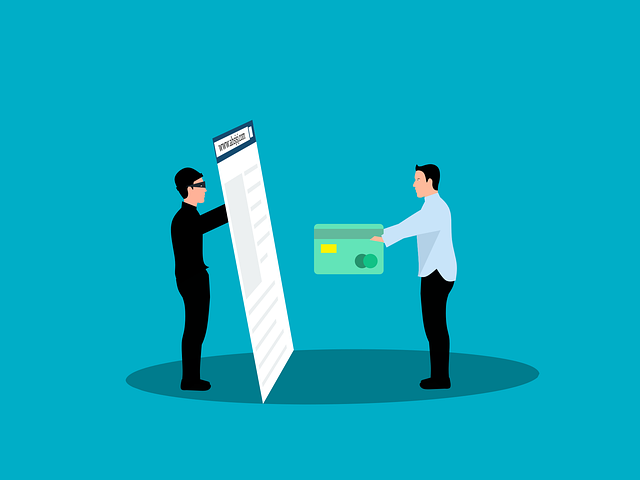
If you’re here because WordPress is Hacked, take a breath. Most site owners don’t notice a “big crash” when something goes wrong. Instead, it’s the little red flags that trigger the panic: a weird redirect on mobile, spam pages showing up in Google, a sudden drop in traffic, or a new admin user you swear you didn’t create.
When WordPress is Hacked, it can look totally normal to you while quietly hurting your business in the background—sending visitors to sketchy URLs, injecting junk content into your database, or leaving a backdoor so the attacker can return later. The longer it runs, the more expensive it gets: lost leads, blacklists, ruined rankings, and cleanup that snowballs.
Here’s the good news: if WordPress is Hacked, you can usually recover it. But the order matters. The biggest mistake is jumping straight into deleting random files or restoring an old backup before you’ve stopped the attacker and captured enough clues to prevent a repeat infection.
This walkthrough uses a simple three-phase approach: contain → clean → harden. First, we “stop the bleeding” so the damage doesn’t spread. If WordPress is Hacked, your goal is not to “hunt malware” first—it’s to regain control, protect users, and preserve evidence of how they got in. Then we clean and restore safely (files and database). Finally, we lock things down so WordPress is Hacked doesn’t become a recurring monthly surprise.
By the end, you’ll have a clear checklist you can follow under pressure, plus the decision points for when it’s smarter to bring in a pro.
WordPress is Hacked — 12 Signs You Should Confirm Fast
If you’re seeing any of the issues below, don’t assume it’s a “glitch.” When WordPress is Hacked, the site often keeps working just enough to look normal—while the bad stuff happens behind the scenes.
1) Redirects, spam pages, and “Google flagged my site”
- Visitors get redirected (often mobile-only or only from Google).
- Random spam URLs show up indexed under your domain (casino, pharma, porn, “cheap loans”).
- Your homepage looks fine, but some pages load extra popups or scripts.
- Google shows “This site may be hacked” or “Deceptive site ahead.”
2) New users, weird changes, and things you didn’t install
- A new admin user appears (or an old user is upgraded to admin).
- You find plugins/themes you didn’t add (especially “utility” or “cache” plugins you’ve never heard of).
- Your site title/meta description changes, or posts get edited with hidden links.
- Your contact form routes to a different email, or you stop getting leads.
3) Performance spikes and hosting warnings that don’t make sense
- Sudden CPU/RAM spikes, slow backend, or random 500 errors.
- Outbound email spikes (newsletter you didn’t send, bounce complaints).
- File timestamps change across many folders, or new strange PHP files appear in
/wp-content/uploads/. - Scheduled tasks you didn’t create (wp-cron events running at odd intervals).
Here’s the quick way to think about it: WordPress is Hacked symptoms usually fall into three buckets—traffic manipulation (redirects/spam), access manipulation (users/plugins/settings), and resource abuse (spam sending, crypto-mining, bot traffic). If WordPress is Hacked, you don’t need to prove everything before acting—you just need enough confirmation to move into containment safely (next section).
The First 30 Minutes (Contain the Damage Before Cleanup)
If WordPress is Hacked, your first job is not malware hunting—it’s containment. Think “stop the bleeding.” You’re trying to (1) protect visitors, (2) stop the attacker from continuing, and (3) preserve enough evidence to prevent a repeat infection.
1) Protect visitors + stop active damage (5–10 minutes)
- Put the site in maintenance mode (a real 503 if possible). This prevents bots from crawling the mess and reduces exposure to users.
- If you can’t do a clean 503 quickly, temporarily block public access at the host/CDN level (even a basic “deny all except my IP” is fine for now).
- Pause paid campaigns (Google Ads, Meta, email blasts). If WordPress is Hacked, you don’t want to send fresh traffic into redirects or malicious scripts.
2) Lock down credentials (5 minutes)
Change all access points—don’t just change your WordPress admin password:
- WordPress admin password(s) + any editor accounts
- Hosting panel login
- FTP/SFTP passwords + SSH keys (if applicable)
- Database password (and update
wp-config.phpafter) - Email accounts tied to password resets (site admin email, hosting email)
Also: log out all sessions / revoke active logins if your security plugin or host panel supports it. When WordPress is Hacked, stolen sessions can bypass your “new password” instantly.
3) Close the obvious doors (5–10 minutes)
Do quick, low-risk shuts that don’t “clean,” but do reduce reinfection:
- Disable the WordPress file editor (prevents theme/plugin edits from wp-admin).
- Restrict wp-admin access (IP allowlist if possible, or at least add extra protection).
- Disable XML-RPC if you don’t use it (common brute-force and abuse vector).
- If you suspect a plugin vulnerability: disable all plugins temporarily (rename the
pluginsfolder) to stop active payloads. If WordPress is Hacked, this often stops redirects immediately.
4) Preserve evidence (5 minutes)
Before deleting anything, capture quick “snapshots”:
- Export a list of users (especially admins)
- Note any recently installed/updated plugins/themes
- Download/record security logs, server logs, Search Console warnings
- If possible, take a full backup of files + database (even if infected). This is for forensics and rollback testing—not for blindly restoring.
Key rule: Don’t “clean” yet. Contain first. Once the site is stable, you’ll move into confirmation + entry-point diagnosis so WordPress is Hacked doesn’t turn into “Wordpress is hacked again next week.”
Confirm the Hack + Find the Entry Point (Without Guessing)

Containment buys you time. Now you need confirmation + a likely entry point, because if you only “remove the obvious malware” and move on, reinfection is common. When WordPress is Hacked, the visible symptom (redirects/spam/admins) is often just the output of a deeper access problem.
1) Confirm with the fastest, highest-signal checks
- Google Search Console (Security Issues / Manual Actions): Look for hacked content warnings, injected pages, or “deceptive site” notices.
- Site search in Google: Search
site:yourdomain.comand scan for spam keywords (casino/pharma/loans). - Browser + uptime tools: If users report warnings, test your homepage + a few inner pages from mobile and desktop.
2) Check what changed (without deleting anything yet)
- New admin users / role changes: Verify every admin is legit and note creation dates.
- Recent plugin/theme installs + updates: Anything added/updated right before the issue is a prime suspect.
- File modification patterns: A spike of modified PHP files, especially inside
/wp-content/uploads/,/mu-plugins/, or odd-named directories, is a classic indicator. If WordPress is Hacked, backdoors often hide where you don’t expect PHP.
3) Use “safe scans” + integrity checks
- Security plugin scan (Wordfence/Sucuri/etc.) for a quick triage signal (don’t rely on it as the only step).
- Core integrity check: Reputable scanners can compare WordPress core files against known-good versions to flag tampering.
- Database red flags: Spam posts, weird redirects stored in options, or unexpected scripts in widgets/headers.
4) Narrow the entry point (so it doesn’t happen again)
Most common causes:
- Outdated/vulnerable plugin or theme
- Weak/reused credentials (WP, hosting, FTP/SFTP)
- Nulled/“free premium” themes/plugins
- Over-permissive file permissions
If WordPress is Hacked and you can’t identify how, treat that as a risk signal—your next section (clean + restore) should assume a backdoor exists until proven otherwise.
Clean + Restore Safely (A Repeatable Malware Removal Workflow)
Once the attack is contained and you’ve captured basic evidence, it’s time to clean + restore—but in a way that doesn’t leave a hidden backdoor behind. The goal isn’t “make the site look normal.” The goal is: clean files + clean database + remove persistence + verify integrity.
If WordPress is Hacked, Replace Core Safely (Integrity Checks)
This is the safest “reset” move you can make because WordPress core should be identical to the official version.
- Backup first (even if infected): Keep a copy of the current files + database so you can reference what changed if needed.
- Reinstall WordPress core from a trusted source:
- Replace
/wp-admin/and/wp-includes/completely with fresh copies. - Replace root core files (
wp-login.php,wp-settings.php, etc.) with fresh copies. - Do NOT overwrite
wp-config.phpor yourwp-content/folder yet.
- Replace
- Integrity checks:
- Compare core files against the official checksums (many security tools do this automatically).
- If your host provides “file restore” or “malware cleanup,” confirm what exactly it changes (some only remove known signatures).
Why this matters: When attackers edit core, they can reinject malware even after you “clean” plugins.
Clean Themes + Plugins (Remove, Don’t Patch in Place)
Most reinfections come from leaving a compromised plugin/theme in place.
- List everything installed (including inactive plugins). If you don’t recognize it, treat it as suspicious.
- Remove any nulled/abandoned plugins/themes immediately. If you got it from anywhere other than the official repo or the vendor, assume it’s risky.
- Reinstall from trusted sources:
- Delete the plugin/theme folder completely.
- Download a fresh copy from WordPress.org or the official vendor.
- Reinstall and reconfigure (yes, it’s annoying—still safer than “cleaning” unknown code).
- Update everything (WordPress, plugins, themes) after you’re stable and sure the environment isn’t actively compromised.
Pro tip: If the hack started right after one plugin update, don’t just roll it back—verify the plugin’s security history and replace it if it’s known vulnerable.
Database Cleanup (Where Spam + Redirects Love to Hide)
A site can look clean while the database keeps re-injecting junk.
Check and clean:
- Users + roles: remove unknown admins; reset passwords for all privileged users.
- Spam content: remove spam posts/pages, weird drafts, auto-created categories/tags.
- Injected redirects: common hiding places include widget content, header/footer settings, and “options” tables.
- Suspicious site URL changes: confirm your
siteurlandhomevalues are correct.
If you find long blocks of weird JavaScript, iframe snippets, or encoded strings in settings fields, that’s a major indicator the database was used for persistence.
Hunt Backdoors (Persistence = The Real Enemy)
If you skip this, you’ll fix symptoms and get reinfected.
Where to look:
/wp-content/uploads/(PHP files don’t belong here in most setups)/wp-content/mu-plugins/(must-use plugins load automatically)/wp-content/cache/and random new directories with strange names- Scheduled tasks / cron: attackers love “re-run every 5 minutes” persistence
wp-config.phpand.htaccessfor strange includes/redirect rules
What backdoors often look like:
- Random file names that mimic core files
- Tiny “loader” files that include remote scripts
- Obfuscated code (
base64,gzinflate, long unreadable strings)
Verification step (don’t skip):
- Re-scan after cleaning (security plugin + manual spot checks).
- Load the site in an incognito window, on mobile, and from a different network.
- Confirm redirects/spam stop, and that no new admin users appear.
If anything regenerates after cleanup, assume a backdoor remains and repeat the persistence hunt before moving to hardening.
Hardening After Cleanup (Make It Hard to Get Hacked Again)
Cleaning gets you back online. Hardening is what keeps you online. Most repeat infections happen because the original entry point stays open (old plugin, weak credentials, no WAF, no monitoring). Use this section like a “lock the doors” checklist.
Updates + Least Privilege (Stop easy re-entry)
- Update everything: WordPress core, plugins, themes. Remove anything you’re not actively using.
- Delete abandoned plugins/themes (anything not updated in a long time or unsupported).
- Enforce strong logins:
- Use a password manager + unique passwords for every admin.
- Enable 2FA for all admin/editor accounts.
- Tighten roles:
- Only 1–2 admins max.
- Everyone else should be Editor/Author (or lower) based on actual need.
- Turn off risky defaults:
- Disable file editing in wp-admin (
DISALLOW_FILE_EDIT). - Consider blocking XML-RPC if you don’t need it.
- Disable file editing in wp-admin (
- Rotate secrets:
- Change WordPress salts/keys (forces session resets).
- Reissue SSH keys / rotate FTP/SFTP credentials if used.
Security Layers (Add friction for attackers)
- Add a WAF/CDN (Cloudflare or similar): blocks bot patterns, adds rate limiting, reduces brute force.
- Limit login abuse:
- Rate limit
/wp-login.php - Add CAPTCHA where it makes sense
- Hide/limit admin access by IP when possible
- Rate limit
- File permission sanity check:
- Avoid writable-everywhere setups.
- Keep uploads writable, but keep sensitive files locked down.
- Disable unnecessary services:
- If you don’t need REST endpoints for public use, restrict.
- Remove old staging sites/subdomains (these get forgotten and hacked).
Backups That Actually Work (So recovery is boring next time)
- Offsite backups (not just “on the same server”).
- Backup frequency:
- Content sites: daily
- Ecommerce/lead-gen: at least daily + pre-update snapshots
- Test restores monthly: a backup you can’t restore is just a comforting file.
Monitoring Plan (Catch issues before customers do)
- Uptime + page change alerts (homepage + checkout/contact page).
- File change detection (alerts when core files or plugin files change unexpectedly).
- Vulnerability tracking: watch your installed plugins/themes for known CVEs and update fast.
- Log review: at least spot-check weekly (failed logins, unknown IP patterns, unusual POST requests).
Once these are in place, you’re not relying on luck—you’re building a system where problems get caught early and cleanup is faster, cheaper, and far less stressful.
Ongoing Maintenance + When to Hire a Pro
Once you’ve cleaned and hardened, the goal is to make sure this never turns into a surprise again. A lot of “repeat hacks” aren’t new attacks—they’re leftovers (missed backdoors, outdated plugins, weak access, or missing monitoring).
Ongoing maintenance that prevents repeat infections
- Weekly: update plugins/themes (remove anything unused), review security alerts, spot-check failed logins.
- Monthly: test a restore from backup, rotate key passwords for critical accounts, review admin users/roles.
- After every major change: take a pre-update snapshot and monitor for file changes/redirects.
When it’s smarter to hire a pro
If WordPress is Hacked and any of the following are true, professional cleanup is usually faster (and safer) than trial-and-error:
- Ecommerce or PII involved (payments, customer data, logins).
- Reinfection keeps happening after you “cleaned.”
- You can’t identify the entry point (high risk of persistence).
- Google warnings / blacklists are active and hurting leads fast.
- You don’t have time to do logs, file integrity checks, and database cleanup properly.
What a pro will ask for (so you can move faster)
- Hosting access (or SFTP/SSH), WordPress admin, and database access
- Recent backups, security plugin logs, and the timeline of what you noticed
- A list of recent plugin/theme updates or new installs
What “done” looks like: clean scans, no redirects/spam reappearing, patched entry point, rotated credentials, hardened setup, and monitoring + backups that are tested.
Quick Recovery Checklist + Recommended Tools
If you’re in “I need a plan right now” mode, use this as your one-page action list. The sequence matters—contain first, then clean, then harden.
Quick Recovery Checklist (Contain → Clean → Harden)
Contain (first 30 minutes)
- Put site in maintenance mode (503) or block public access temporarily (allow only your IP).
- Pause paid traffic and campaigns until you confirm redirects/warnings are gone.
- Change passwords: WP admin, hosting, SFTP/SSH, database, and admin email.
- Log out all sessions / revoke active sessions (if available).
- Disable file editor + restrict wp-admin access (IP/CAPTCHA/rate limits).
- Take a full backup of current state (files + DB) for evidence/rollback.
Confirm + Diagnose
- Check Google Search Console (Security Issues / Manual Actions).
- Search
site:yourdomain.comfor spam pages/keywords. - Review admin users + recent plugin/theme installs/updates.
- Scan for strange PHP files in
wp-content/uploads/,mu-plugins/, odd folders.
Clean + Restore
- Replace WordPress core safely (fresh
/wp-admin/,/wp-includes/, core root files). - Remove and reinstall plugins/themes from trusted sources (delete first, reinstall clean).
- Clean database: remove rogue admins, injected scripts, spam posts/pages, weird options.
- Hunt persistence: MU-plugins, cron jobs, .htaccess rules, suspicious includes.
- Re-scan and verify from incognito + mobile + another network.
Harden
- Enable 2FA for admins, enforce strong passwords, reduce admin count.
- Add WAF/CDN + rate limiting on login.
- Set up offsite backups + test restore.
- Enable monitoring: uptime alerts, file change detection, vulnerability alerts.
Recommended Tools (What each one helps with)
Security scanning + cleanup
- Wordfence (common for file integrity + firewall features)
- Sucuri (malware detection + cleanup guidance)
WAF/CDN + bot control
- Cloudflare (WAF, rate limiting, bot protection, caching)
Backups
- UpdraftPlus / BlogVault (offsite backups + restore flows)
- Host snapshots (useful, but don’t rely on them alone)
Monitoring
- UptimeRobot / StatusCake (uptime + page checks)
- Security plugin alerts + file change monitoring
Important: tools don’t replace process. They support it. Use the checklist sequence so you don’t “clean” while the attacker still has access.
FAQ
1) WordPress is Hacked — should I restore a backup right away?
Not immediately. First contain the damage (maintenance mode / restrict access) and rotate credentials. Then verify the backup is clean and restore in a controlled way—otherwise you can reintroduce the infection.
2) Why does my site look normal, but visitors get redirected?
Attackers often use conditional redirects (mobile-only, search-engine referrals, specific countries/IPs). Test from incognito, mobile, and a different network to catch it.
3) Do I need to change database credentials too?
Yes. Rotate hosting panel, SFTP/SSH, database, and WordPress admin passwords. If the database password stays the same, a compromised credential can bring the attacker right back.
4) Can I just “delete the weird files” and be done?
Usually no. Many infections include persistence (MU-plugins, cron jobs, injected options, modified .htaccess). If you only remove visible files, reinfection is common.
5) Will a security plugin fix everything automatically?
It helps a lot with detection and blocking, but it’s not a full cleanup strategy by itself. You still need core integrity replacement, plugin/theme reinstall from trusted sources, database checks, and hardening.
6) How do I know which plugin caused it?
Start with what changed right before symptoms: newly installed plugins/themes, recent updates, and anything abandoned or “nulled.” Server logs and security logs can narrow it down fast.
7) How long does cleanup usually take?
Simple cases can be hours. Complex cases (spam indexed, unknown entry point, repeat reinfections, ecommerce data) can take longer because the priority is removing persistence and verifying integrity.
8) What should I do after cleanup to avoid repeats?
Add layers: 2FA + least privilege, WAF/rate limiting, offsite backups with restore tests, file change monitoring, and a regular update cadence.
Conclusion
A hacked site is stressful—but it’s fixable when you follow the right order. First, contain the damage so you stop redirects and lock out the attacker. Next, clean and restore safely (files and database), then harden the site so it doesn’t happen again. Use the checklist above to work step-by-step, and if you’re dealing with ecommerce, sensitive data, or repeat reinfections, consider bringing in a pro to finish it fast and safely.

Juan is a Digital Advertising / SEM Specialist with over 10 years of experience with Google AdWords, Bing Ad Center, Facebook, LinkedIn, Google Analytics, HTML, and WordPress. He is a co-founder of Sheaf Media Group and has work in several online advertising projects for retail, automotive, and service industries. Additionally, Juan holds a bachelor’s degree in Psychology and has a deep interest in the science of human behavior which he attributes as the key factor for his success in the advertising world.