
Stop Google Ads Permanently – So you’ve decided you’re done with Google Ads. Maybe your campaigns aren’t working out, maybe you’re switching strategies, or maybe you’re just tired of trying to keep up with how complicated Google Ads can be. Whatever the reason, you want one simple thing: for the ads to stop, for good.
Here’s the tricky part — a lot of people search “how do I stop Google Ads permanently” and end up more confused than when they started. That’s because there isn’t just one button. There are actually a few different ways to stop Google Ads, and each one does something a little different. Let’s break it down in plain, simple language so you know exactly what to do.
First, Know the Difference: Pause vs. Remove vs. Cancel
Before you click anything, it helps to understand these three options. They sound similar, but they are not the same thing at all.
Pausing is like hitting the brakes, not turning off the engine. Pausing a campaign temporarily stops your ads from running, but everything stays saved. You can start it back up anytime with one click. This is great if you just want a short break.
Removing a campaign is more final. When you remove a campaign, it stops permanently and you cannot turn it back on. You can still look at the old data, but the campaign itself is done for good.
Canceling your whole account is the big one. This is what most people actually mean when they say “stop Google Ads permanently.” Canceling your account stops every ad you have running, refunds any leftover prepaid money, and shuts the whole thing down.
If your goal is to be completely done with Google Ads, canceling your account is the step you want.
How to Cancel Your Google Ads Account (Step by Step)
Here’s how to do it:
- Log in to your Google Ads account.
- Click your profile photo in the upper right corner.
- Find the account you want to cancel.
- Select the delete icon to permanently cancel the account.
You can also get there a different way:
- Click the gear icon (Settings) in your account.
- Click “Preferences.”
- Click “Account Status.”
- Click “Cancel my account.”
Once you do this, all of your ads will stop within 24 hours. If you have money left in your account, Google will start the refund process, which usually takes about 4 to 12 weeks.
Important: Only someone with “Admin” access to the account can cancel it. If you don’t see the option to cancel, it might mean you don’t have the right permissions, and you’ll need to ask whoever set up the account to help.
Watch Out for This Billing Surprise
Here’s something that catches a lot of people off guard: Google Ads bills you for activity that already happened, even after you cancel. This is normal — it’s not a mistake.
If your ads were running before you canceled, you may still get a final bill within 30 days for any costs that already added up. So don’t be alarmed if you see one more charge after you think everything is closed. It’s just covering clicks that happened before you hit cancel.
This is also why simply pausing your campaigns isn’t enough if your goal is to stop being charged. Pausing stops new ads from running, but it doesn’t fully shut off billing the way canceling your account does. If you truly want to stop everything — ads and charges — cancel the account, don’t just pause it.
Things to Check Before You Cancel
Before you say goodbye to Google Ads, here are a few things smart business owners check first:
Turn off auto-applied suggestions. Google sometimes automatically applies “recommendations” that can increase your spending without you realizing it. Go to Recommendations, then Auto-Apply, and turn these off before you go any further.
Double-check your Performance Max campaigns. These campaigns run across many different places at once — Search, Display, YouTube, Gmail, and Maps — and they can be tricky to fully control. Make sure these are properly paused or removed too.
Export your data. Before you cancel, save any reports, numbers, or campaign details you might want later. Once your account is gone, that information becomes much harder to get back.
Big News: Google Now Permanently Deletes Canceled Accounts
Here’s something brand new that almost every business owner needs to know before they cancel.
In the past, you could cancel your Google Ads account and it would just sit there quietly, ready for you to come back to anytime — even years later. That has changed.
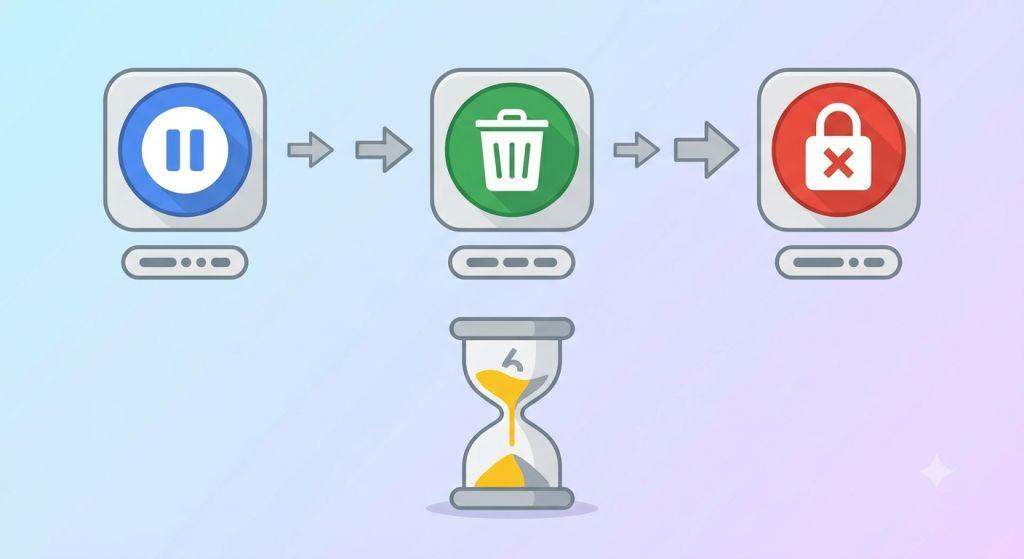
Google now permanently deletes canceled accounts that have no active campaigns six months after cancellation. Before the deletion happens, Google sends a warning email giving you 30 days’ notice. If you reactivate your account within that six-month window, the deletion is stopped and your account stays safe.
This is a big shift. In the past, advertisers could walk away from Google Ads and come back to a canceled account whenever they wanted, with all of their old data and history still there. Now, once that six-month window closes, everything is gone for good — your old campaigns, your reports, your settings, all of it.
So if you’re canceling your account but think there’s a chance you might want to come back someday, mark your calendar. You have six months to change your mind before the door closes for real.
Wait — Is It Really Gone Forever?
Here’s something interesting most people don’t realize: canceling your account doesn’t technically erase it from Google’s systems entirely — at least not right away.
Google keeps closed account information for record-keeping and legal reasons, like taxes and fraud prevention. So a canceled account is more like a locked filing cabinet than something that disappeared into thin air. With the new six-month deletion rule, that filing cabinet now does eventually get emptied out — but it’s not instant.
If you want to erase everything completely and immediately, the only way to do that is to delete your entire Google Account. But be careful — this is a big move. Deleting your whole Google Account also wipes out your Gmail, YouTube, Google Drive files, photos, and anything else tied to that account. This is not something to do lightly, and it’s usually unnecessary just to stop running ads.
What If Your Account Has Been Sitting Unused?
If you stopped paying attention to a Google Ads account a while ago, here’s something to know: Google automatically cancels accounts that haven’t spent any money in over 15 months. You don’t need to do anything for this to happen — it just happens on its own.
Also, if you ever reactivate a canceled account but then don’t use it for three months, Google can automatically cancel it again. Combined with the new six-month deletion rule, it’s smart not to leave canceled accounts sitting around if you might want them later. Set a reminder, and make a decision before time runs out.
If You Manage Multiple Accounts
If you’re running Google Ads through a Manager account (sometimes called an MCC), the rules are a bit different. You can’t fully delete a Manager account — you can only close it. To close one, you’ll need full admin access, your account information verified, and any linked accounts disconnected first. Once closed, your ads stop right away, and any final payment typically arrives within 90 days.
So, What Should You Actually Do?
If you’re ready to stop Google Ads for good, here’s the simple plan:
- Decide if you’re pausing (temporary) or canceling (permanent). Make sure you’re picking the right one for your goal.
- Turn off auto-applied recommendations so spending doesn’t sneak up on you.
- Pause or remove any active campaigns, especially Performance Max.
- Export your data and reports before you go.
- Cancel your account through Settings, or by clicking your profile and selecting delete.
- Watch for one final bill within 30 days — this is normal.
- Remember the six-month rule. If there’s any chance you’ll come back, reactivate before that window closes.
When It Might Be Worth a Second Look
Stopping Google Ads is a big decision, and sometimes the real issue isn’t the platform itself — it’s how the account was set up and managed. A lot of business owners cancel because they feel overwhelmed, not because advertising isn’t working for their business. If that sounds familiar, it might be worth talking to a team that knows how to make the platform actually work for you instead of against you.
Working with experts in search engine marketing for small business can completely change your experience with Google Ads — turning a confusing, frustrating tool into something that actually brings in customers. And if you’ve struggled specifically with overspending, unclear results, or campaigns that seem to run on autopilot, professional PPC Management For Small Business can help you fix the real problem instead of giving up on the platform entirely.
Of course, if you’ve made your decision and you’re ready to walk away, that’s okay too. Now you know exactly how to do it the right way — without any surprise charges and without losing your data before you’re ready to let it go.
For the most current, official instructions straight from the source, you can always check Google’s own Ads Help Center for step-by-step guidance and any future policy updates.
Last updated: June 2026